Transferring a Ticket to Another Guest
How hosts transfer, retract and reassign tickets from the Update Your Guest Information page, and how to transfer tickets for them in Auction Conductor.

Ticket transfers usually happen on the Update Your Guest Information page, which the buyer, called the host, opens from the Update Guest Names link in their purchase confirmation email. Only the host can assign tickets there. You can also transfer tickets for a host in Auction Conductor. Guests can give a ticket back to the host, and the host can retract a ticket and give it to someone else.
This article covers:
- How a host gives away their own ticket
- How a host retracts a guest's ticket
- When a guest gives a ticket back
- When tickets can't be changed
- Transferring a ticket in Auction Conductor
How a host gives away their own ticket
One ticket in each order can be marked as the host's own. On the Update Your Guest Information page, it shows the host's name followed by (you). If the host can't attend, they can give that ticket to someone else. To do that, the host:
- Opens their purchase confirmation email and clicks the link to update their guest names.
- Finds the ticket with their name on the Update Your Guest Information page and clicks Edit.
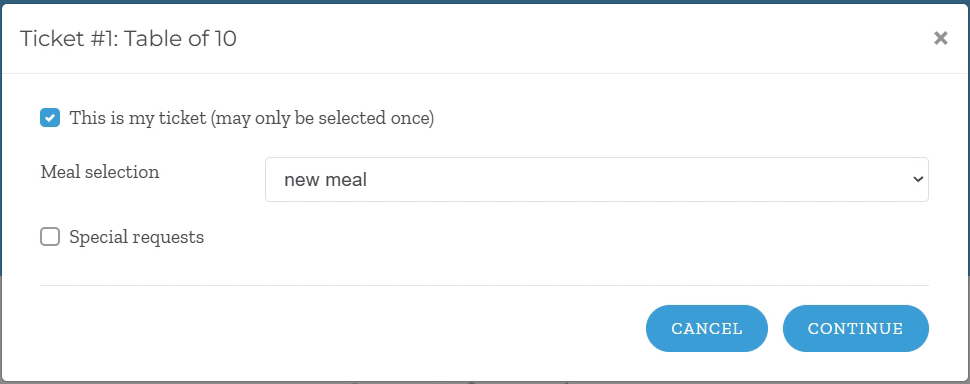
- Unchecks This is my ticket. Fields for the new guest appear.
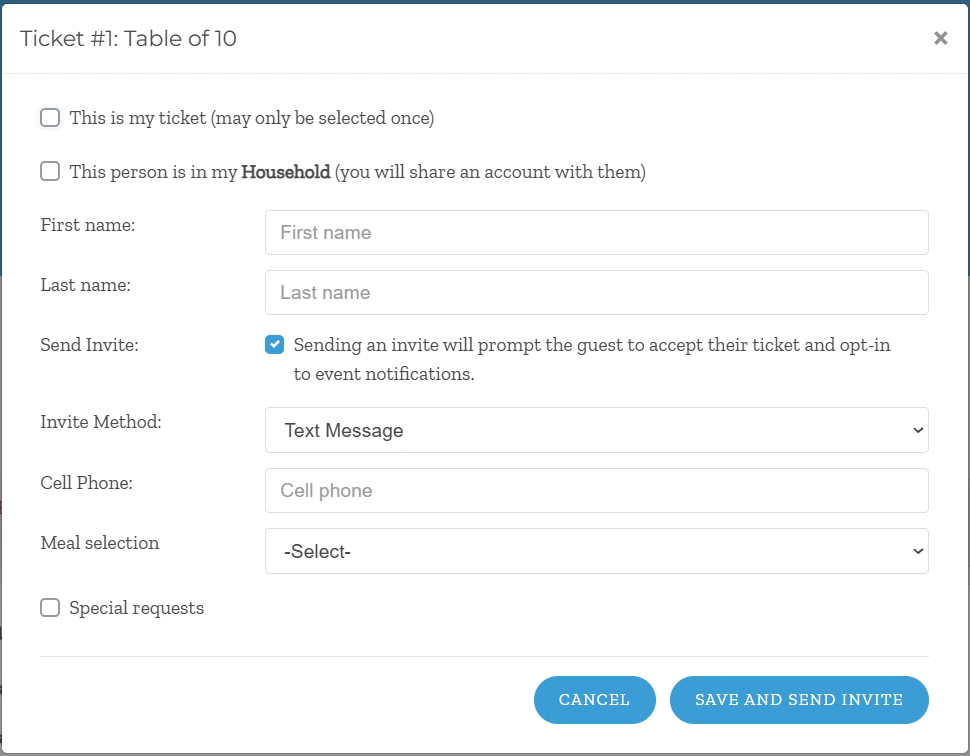
- Enters the new guest's first and last name.
- Leaves Send Invite checked to send an invitation, chooses the Invite Method and enters the new guest's contact details, such as a cell phone number for a text message.
- Picks a meal if your event offers meal choices, or leaves it for the guest to choose when they accept.
- Clicks Save and Send Invite.
The new guest gets an invitation to accept the ticket and complete their profile. Their ticket is Pending until they accept. For all ticket statuses, see Guest Invites (RSVP's).
How a host retracts a guest's ticket
Hosts can retract (revoke) a ticket they've assigned, even after the guest has accepted it, then give it to someone else. This is also the fix when an invitation went to the wrong email address or phone number. To retract a ticket, the host:
- Finds the guest's ticket on the Update Your Guest Information page, listed with the guest's name and contact details.
- Clicks Retract next to the guest's details.
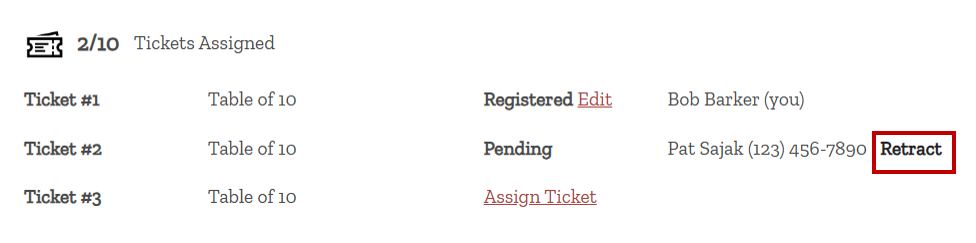
- Clicks Confirm in the Are You Sure? window. If the status was still Pending, the guest can no longer accept the ticket. If the status was Confirmed, the guest receives a notification.
- Clicks Assign Ticket on that ticket and sends it to the new guest, the same way as above.
Retracting turns off the original guest's invitation link right away. Anyone who opens it sees a notice that it was revoked.
When a guest gives a ticket back
Guests can't pass a ticket straight to someone else. Instead, they give it back to the host, who can assign it again.
- Before accepting: The guest declines the invitation. The host is notified, and the ticket goes back to Unassigned.
- After accepting: The guest clicks Release Ticket in the email they got when they accepted, then confirms on your ticketing site. The guest and the host both get a confirmation, and the ticket is ready to assign again. See Releasing Accepted Tickets Back to the Host.
When tickets can't be changed
Transfers follow the same limits as any other change on the Update Your Guest Information page:
- Guests who have checked in. Hosts can't change a guest who has already checked in for the event. Guests who complete express check-in online count as checked in.
- After the cutoff. Once the Guest Edits Cutoff Time has passed, hosts can't change guest names or emails.
- When guest changes are turned off. If Allow guest info changes is off, hosts can still see their tickets, but guest names are locked and no new invites are sent.
You'll find both settings in Auction Conductor under Setup > Microsite > General Settings. For details, see Allowing Hosts to Update Guest Names Later.
Transferring a ticket in Auction Conductor
If you have Contributor access, you can transfer tickets for a host in Auction Conductor, for example when a host asks you to make the change. Each ticket in a host's purchase belongs to their group, and you make changes on the group's Edit Group screen.
Opening the host's group
- Go to Contributors and click Groups Detail.
- Search for the host or the group name. The Needs Names column shows how many of the group's tickets still need a guest.
- Click the pencil icon in the Actions column to open Edit Group.
You can also switch the Contributors grid to the Groups display mode and click the group's name. See Grid Controls.
On the Edit Group screen, each row is one ticket, showing the guest's name, Admission Ticket, Status and Table Assignment. Tickets that haven't been given to anyone yet are listed as Guest of, followed by the host's name.
Giving a guest's ticket to someone new
- Click the red X on the row of the guest who is giving up the ticket. They're removed from the group, and so is their ticket.
- Under Search for new members, search for the person receiving the ticket, then click + Add to Group. They join the group with a ticket of their own.
- Check the new guest's Admission Ticket, and choose a table under Table Assignment if your event seats guests.
- Click Save.
- Back on the Contributors grid, open the record of the person you removed. If they're still attending the event, you can leave their ticket in place, but keep in mind that this gives them a free ticket. If they're not attending, change their contributor type to Online. This removes their ticket and gives them a 5-digit bidder number, so they can still bid remotely, make purchases and donate.
Other changes on the Edit Group screen
- Move a guest to another host's group. Click the arrows icon on the guest's row and pick the group. The guest and their ticket move to that host.
- Give the group a new host. Select Host on the new host's row and click Save. The new host controls all of the group's tickets.
- Seat the whole group. Click Assign table to all to give everyone in the group the same table.
- Let the host make the change. Click Send Host Update Guest Names Link to create a message with the host's link that you can paste into your own email. On the Groups Detail screen, the envelope icon copies the same link.
For more, see Contributor Groups.
Frequently asked questions
- Where is the Transfer Ticket button? It was replaced in a recent update. Hosts now transfer a ticket by editing it on the Update Your Guest Information page, as described above, and you can transfer tickets for them in Auction Conductor.
- Can a guest give their ticket straight to a friend? No. Only the host can assign tickets on the Update Your Guest Information page. The guest declines or releases the ticket, and the host assigns it to the friend. You can also make the change for them in Auction Conductor.
- Why can't a host assign a ticket to someone? That person may already have a ticket for this event. Each person can hold only one ticket per event.
- A host can't find their purchase email. How do they get back to the page? On the Groups Detail screen, click the envelope icon to copy their link and send it to them, or click Send Host Update Guest Names Link on their Edit Group screen.
- Why can't a host change one of their guests? The guest may have already checked in, the Guest Edits Cutoff Time may have passed, or Allow guest info changes may be turned off.
How did we do?
Releasing Accepted Tickets Back to the Host
Update Guest Names Form & Email
