Staffed Check-In for Households
Version 12.0 redesigns the check-in screen with dynamic color-coded status indicators, streamlining household registration and per-person add-on sales.

Version 12.0 (released March 30th, 2026) introduces a completely redesigned staffed check-in screen. This new design streamlines the process for checking in entire households at once.
Household Search Results
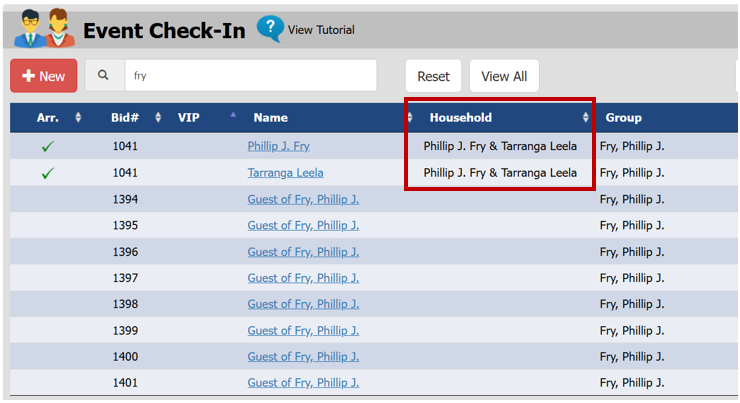
The search screen now displays household names in search results, making it easier to find families.
Household Check-In Screen
Click on any household member to open the household check-in screen. Each family member appears in their own row with key check-in information displayed.
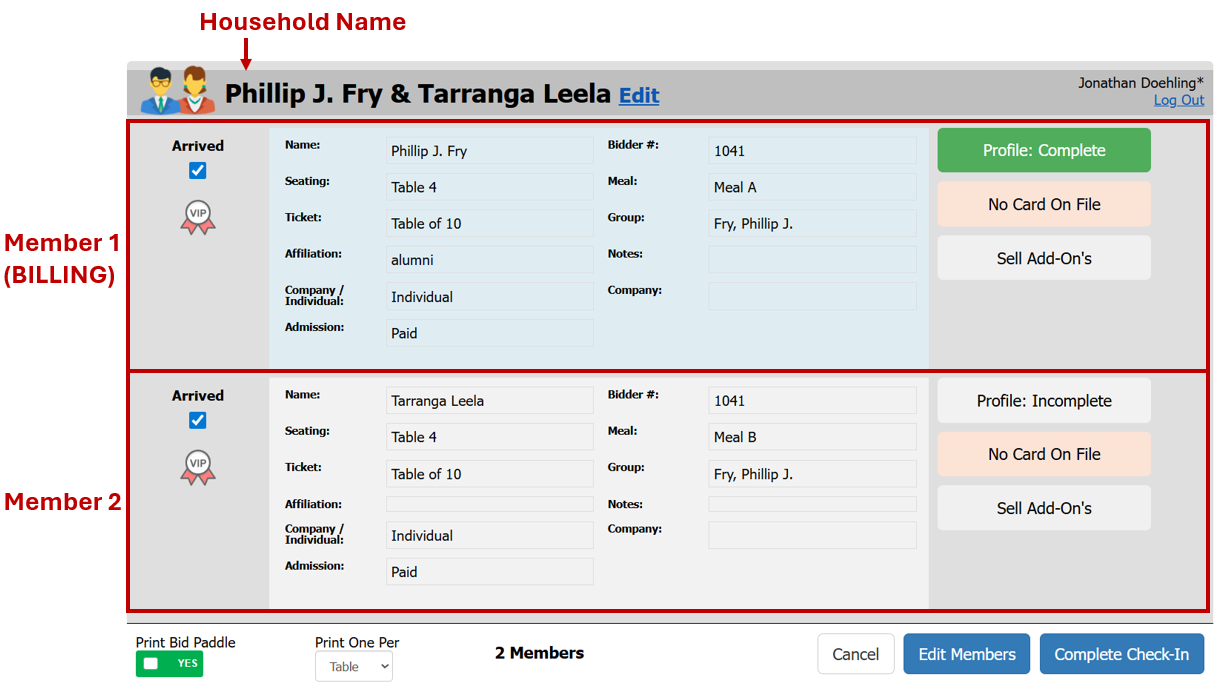
The blue box identifies the billing contact (one per household).
Profile Status Indicators
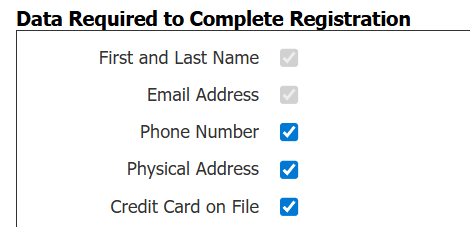
PROFILE buttons are dynamic and change color based on available contact information compared to your Data Required to Complete Registration settings in Auction Conductor > Setup > App Settings.
Profile: Complete (Green)
Full contact information is available. No action required.

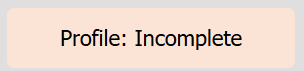
Profile: Incomplete (Orange)
Required contact information is missing for this household. Click the button next to any member (typically the billing contact) to collect the missing data.
Profile: Incomplete (Grey)
Required contact information is missing for some household members, but complete information exists for at least one person. You can likely proceed without collecting this person's information since another household member has a complete profile.
Using the Profile Button
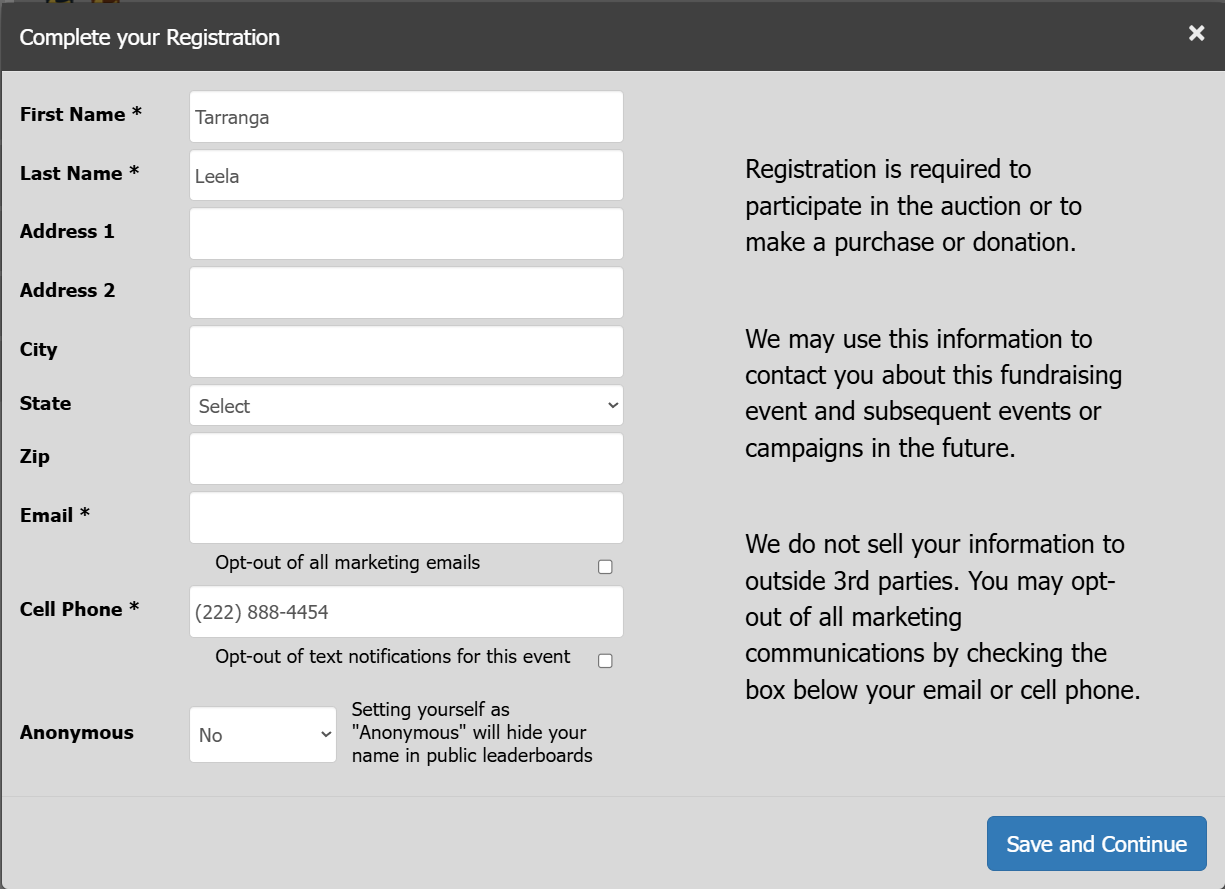
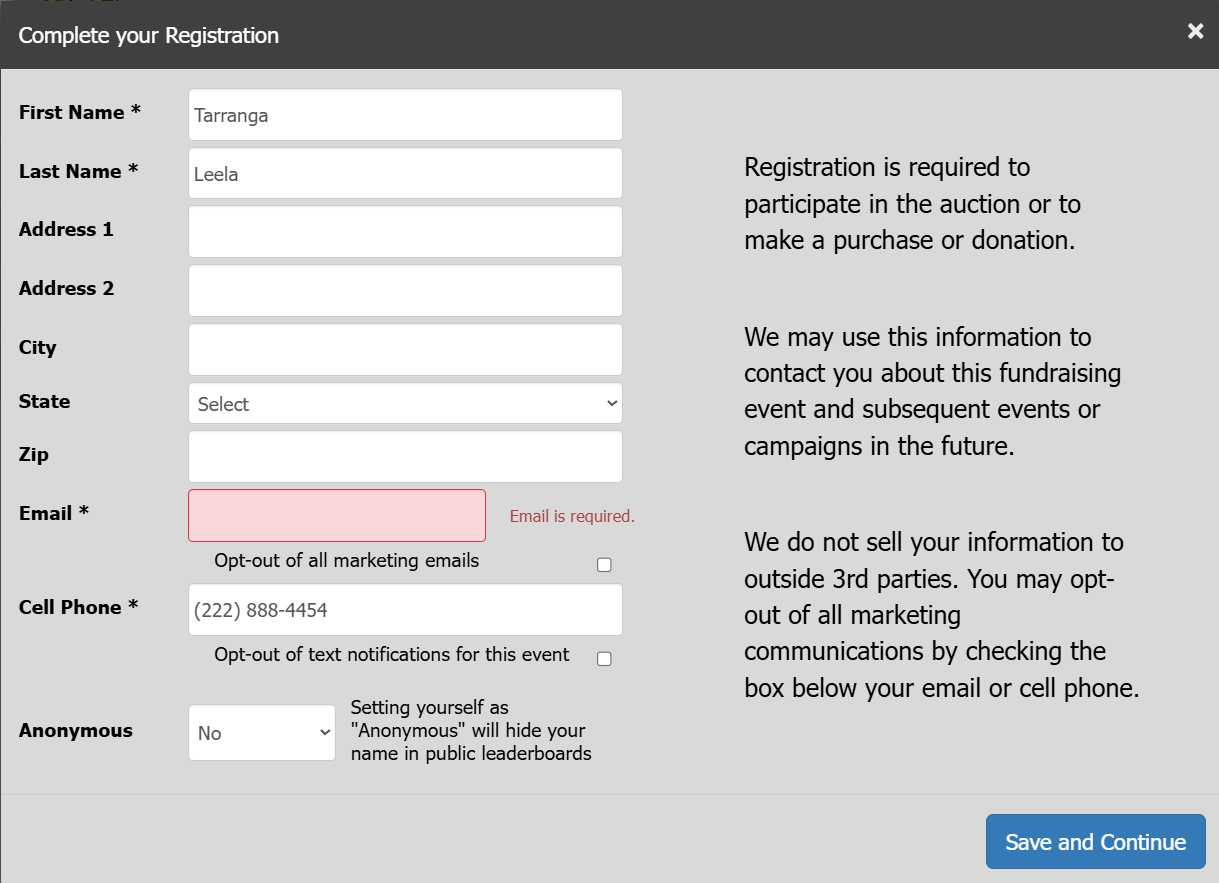
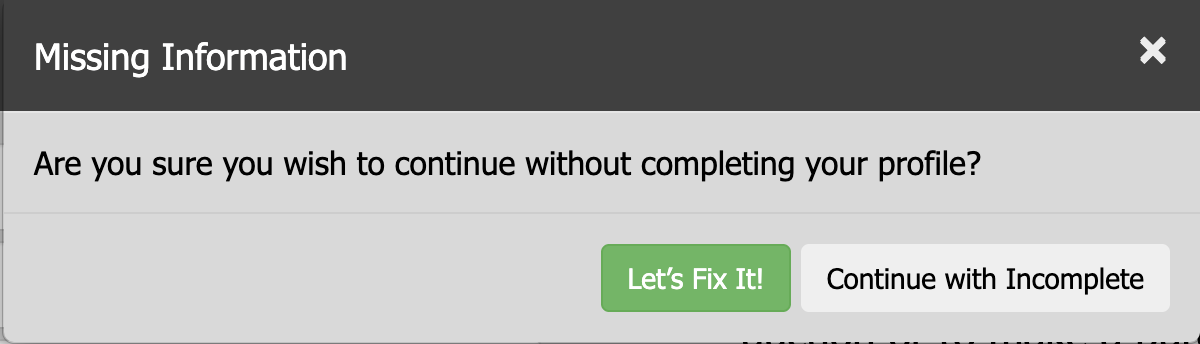
Clicking any PROFILE button opens a registration form for the guest to complete themselves. Hand the tablet to the guest so they can enter their information directly.
Credit Card Status Indicators
CARD ON FILE buttons are also dynamic and use color coding:
Card on File (Green)
A credit card is on file for this person. The button displays the card type and last 4 digits for verbal confirmation with the guest.

No Card on File (Orange)
No credit card is on file for anyone in the household. Collect a credit card from at least one person, typically the billing contact.
No Card for This Person (Grey)
No card is on file for this person, but another household member has a card on file. You can likely proceed without collecting this person's credit card information.

Selling Add-Ons
Add-on sales are now managed per person. Select the person who should receive the add-on and click Sell Add-Ons.

A window opens with package filters. Adjust the Quantity to Add and click save to add the package to the selected person.
Package Filters
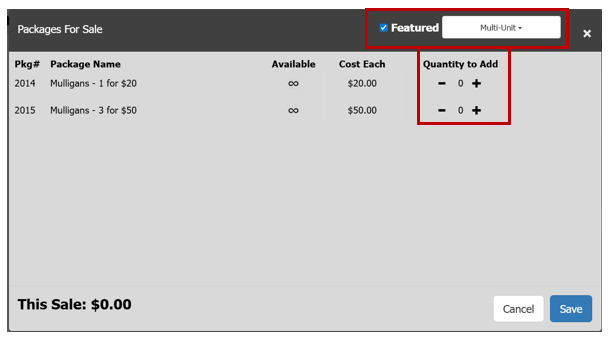
Filters help reduce clutter since most events contain many admission tickets, sponsorships, and donations that check-in staff don't need to see.
The Featured checkbox shows only featured packages. Pre-define which packages check-in staff should see by marking them as featured. Since most multi-unit packages sold at check-in are unpublished, ensure your desired packages are marked as featured to appear by default.
How did we do?
Setting a Preferred Credit Card at Check-In
VIP and Registration Notes
