Guest Invites (RSVP's)
Version 12.0 automates ticket assignment and RSVPs, streamlining guest management while improving data quality and reducing staff check-in workload.

Version 12.0 (released March 30th 2026) introduces an automated ticket assignment and RSVP system that streamlines guest management workflows.
This system automatically sends notifications to guests, encouraging them to accept their ticket and complete their profile before the event. This improves guest data quality and reduces check-in workload for staff.
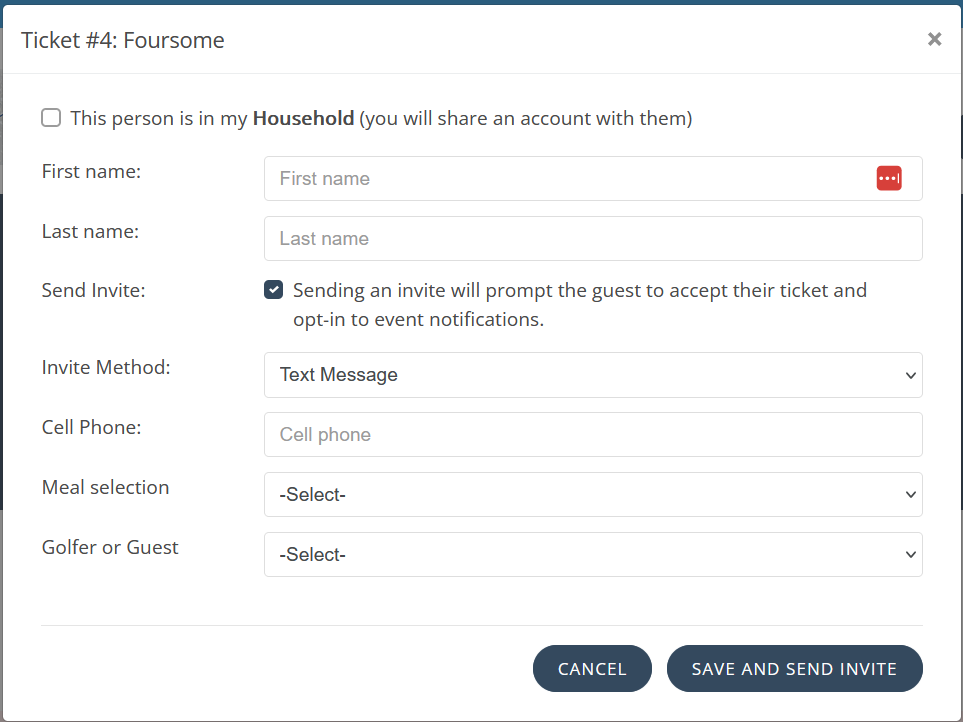
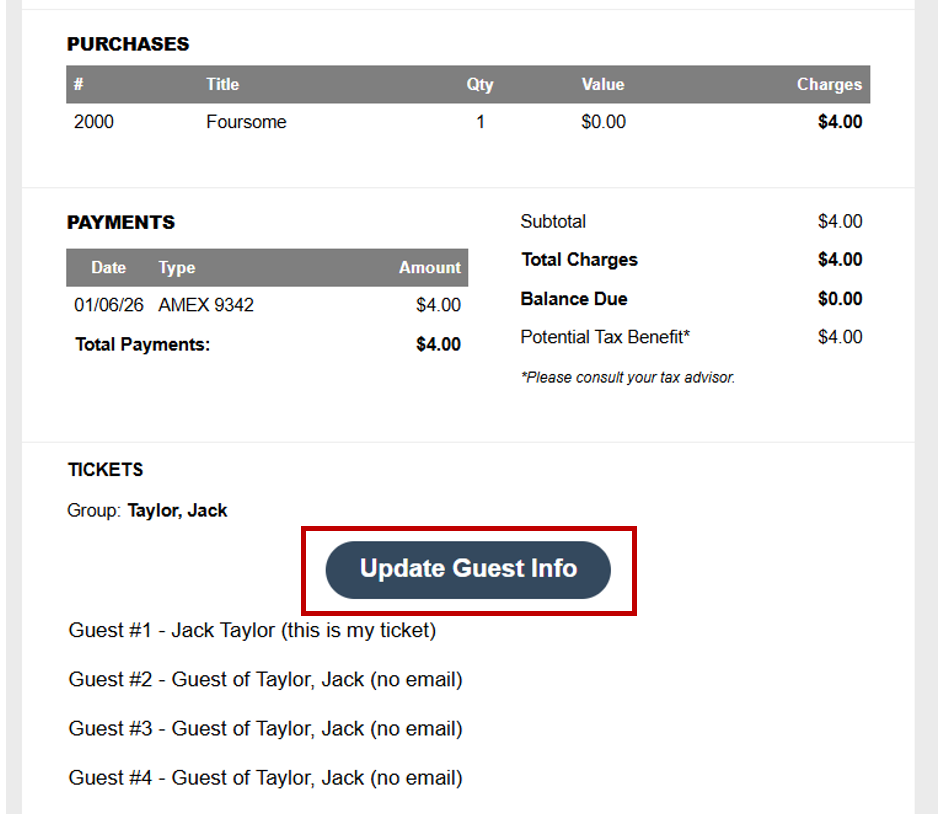
During checkout—or anytime using the Update Guest Names smart link—Group Hosts can:
- Mark which guests belong to the buyer's household
- Add guest names when no contact information is available
- Set meal choices if applicable
- Note that the meal selection here is Optional for Hosts, Required for attendees when accepting their ticket.
- Set custom questions on behalf of the attendee - Read more about this feature here
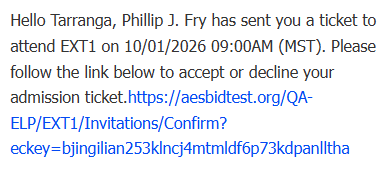
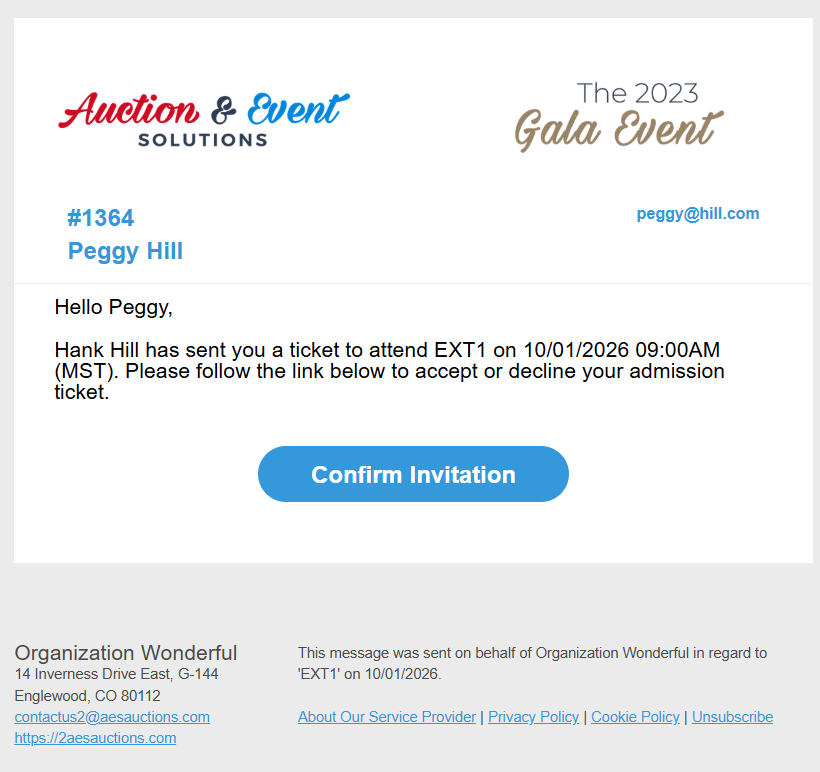
- Send invitations to guests—Invitations are delivered immediately via email or SMS
SMS EXAMPLE
EMAIL EXAMPLE
Ticket Statuses
Each guest ticket has one of the following statuses:
Unassigned
No guest information provided. A placeholder record ("Guest of {Host}") allows table assignments and paddle printing. Guest details must be collected at check-in.
Partial Info
Name provided, but no phone number or email. The system cannot notify the guest to complete registration without contact information.
Pending
Name and contact information (phone or email) provided. The guest has been notified and needs to confirm their attendance.
Confirmed
Guest accepted the invitation and completed their profile. They can receive event communications and use express check-in features (credit card on file, QR code tickets).
Invite Not Sent
Name and contact information available, but invitation was not sent. This occurs when guest details exist in the system but the automated invitation process was not triggered.
The Guest Experience
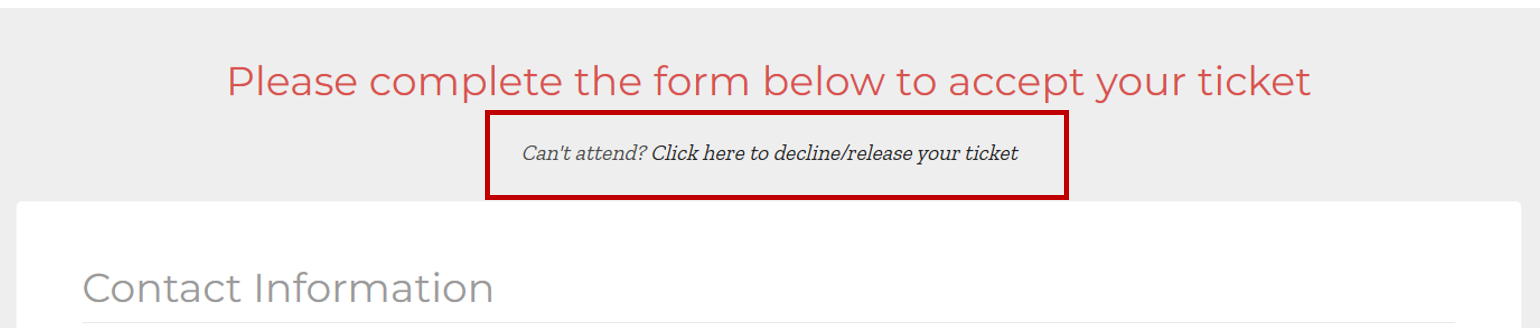
When guests click the smart link in their invitation, they complete their registration on the ticketing website. They provide any missing contact information and, if required by event settings, select meal preferences and answer custom questions.
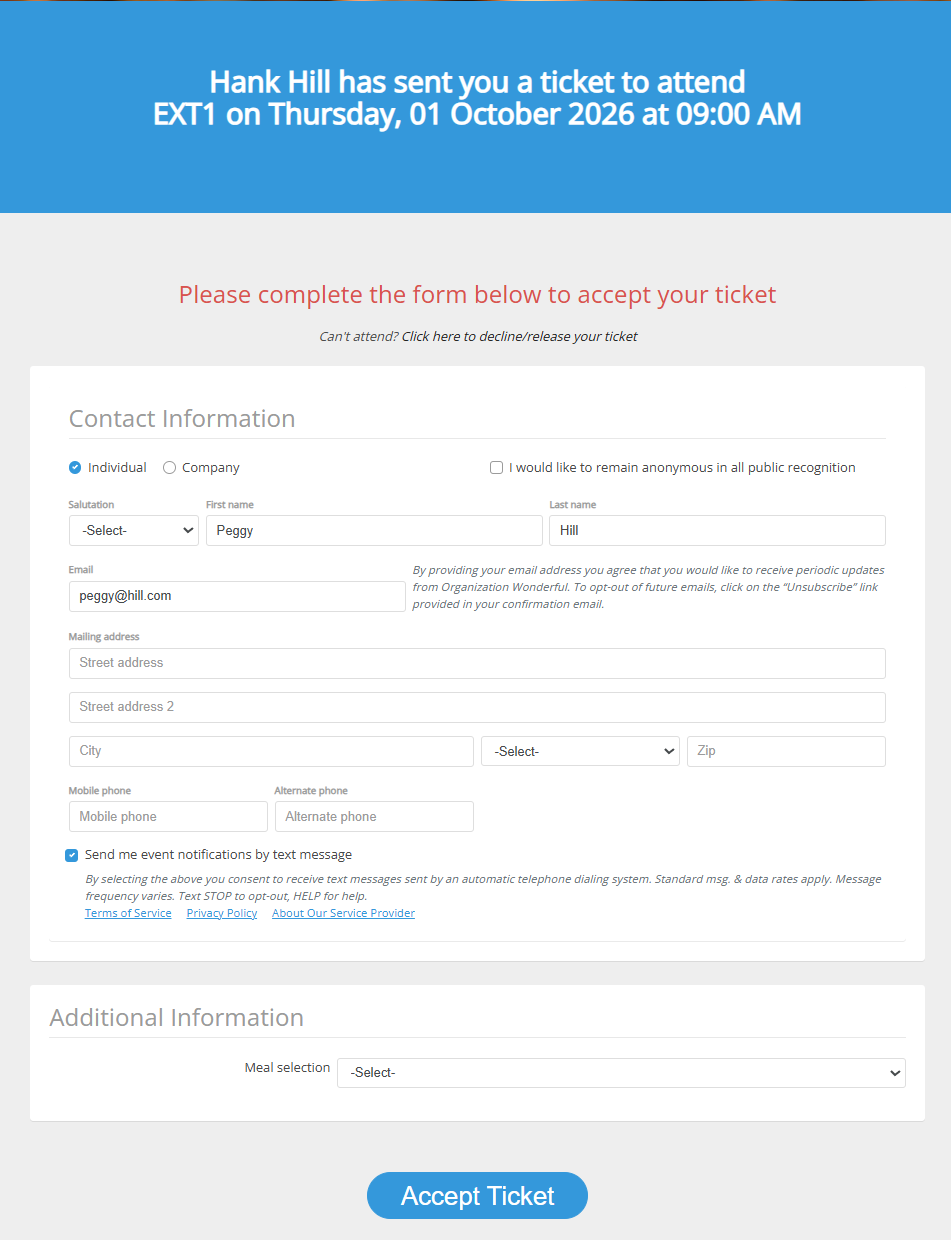
Once submitted, the guest's status changes to Confirmed and their profile is complete.

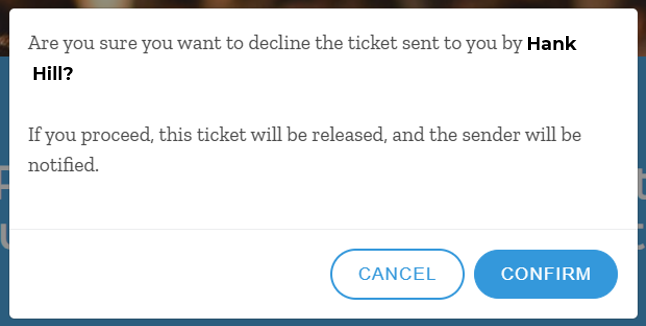
Guests can also decline the ticket, which notifies the host and resets the ticket status to Unassigned.
The Host Experience
After sending invitations, hosts only need to take action if:
- A guest declines their ticket
- A guest reports not receiving the invitation
In these cases, hosts can return to the Update Guest Names page using the smart link from their purchase receipt email to make corrections.
Sending Reminders to Hosts
Host Reminders can be customized with branded text, images (email only), and hyperlinks.
Send reminders for unassigned tickets in several ways:
- Manually from Auction Conductor by users with Contributor access:
- From the Contributors > Groups Detail screen

- From the Edit Group screen
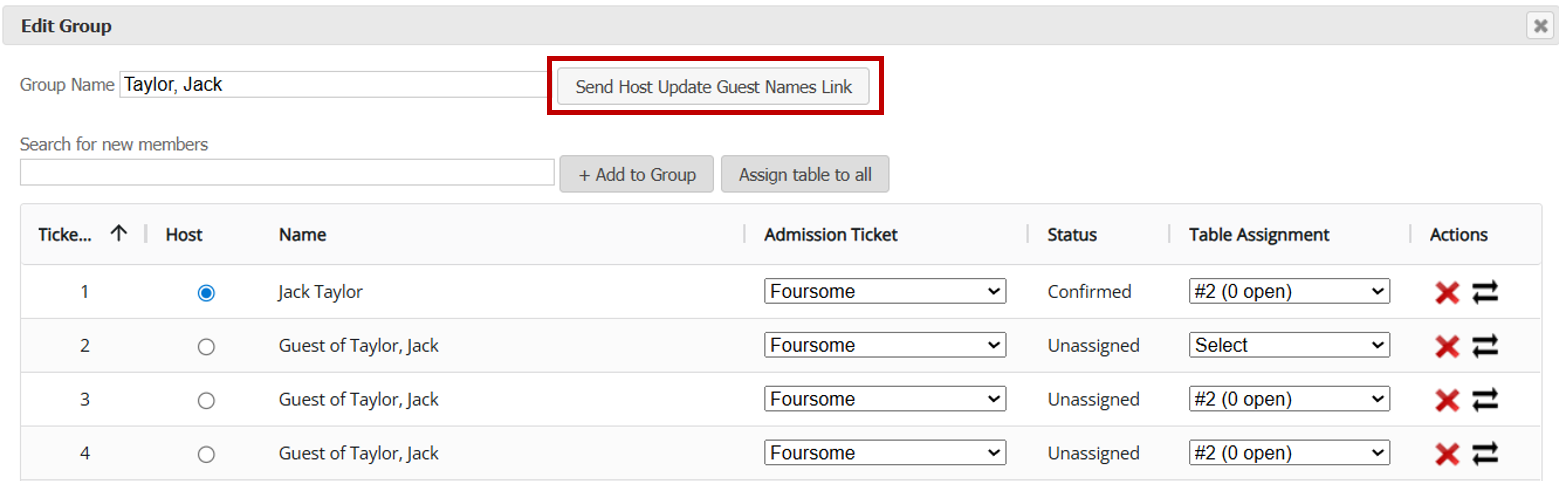
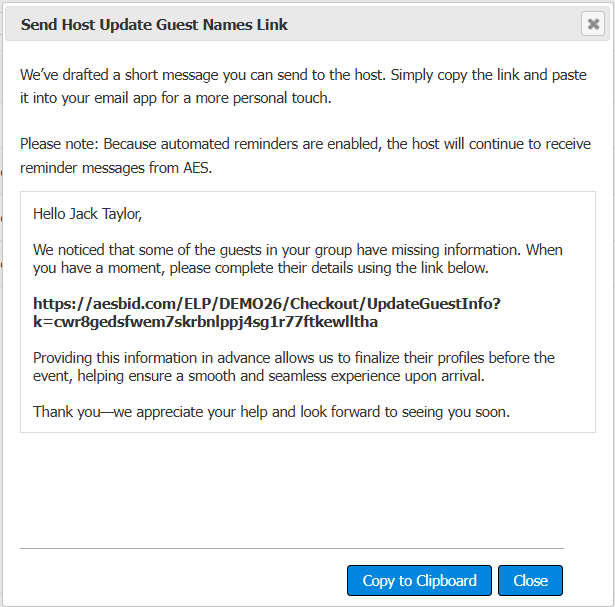
- This creates a template you can copy and paste into a personal email. Personal emails from familiar addresses typically get better response rates than automated system messages.
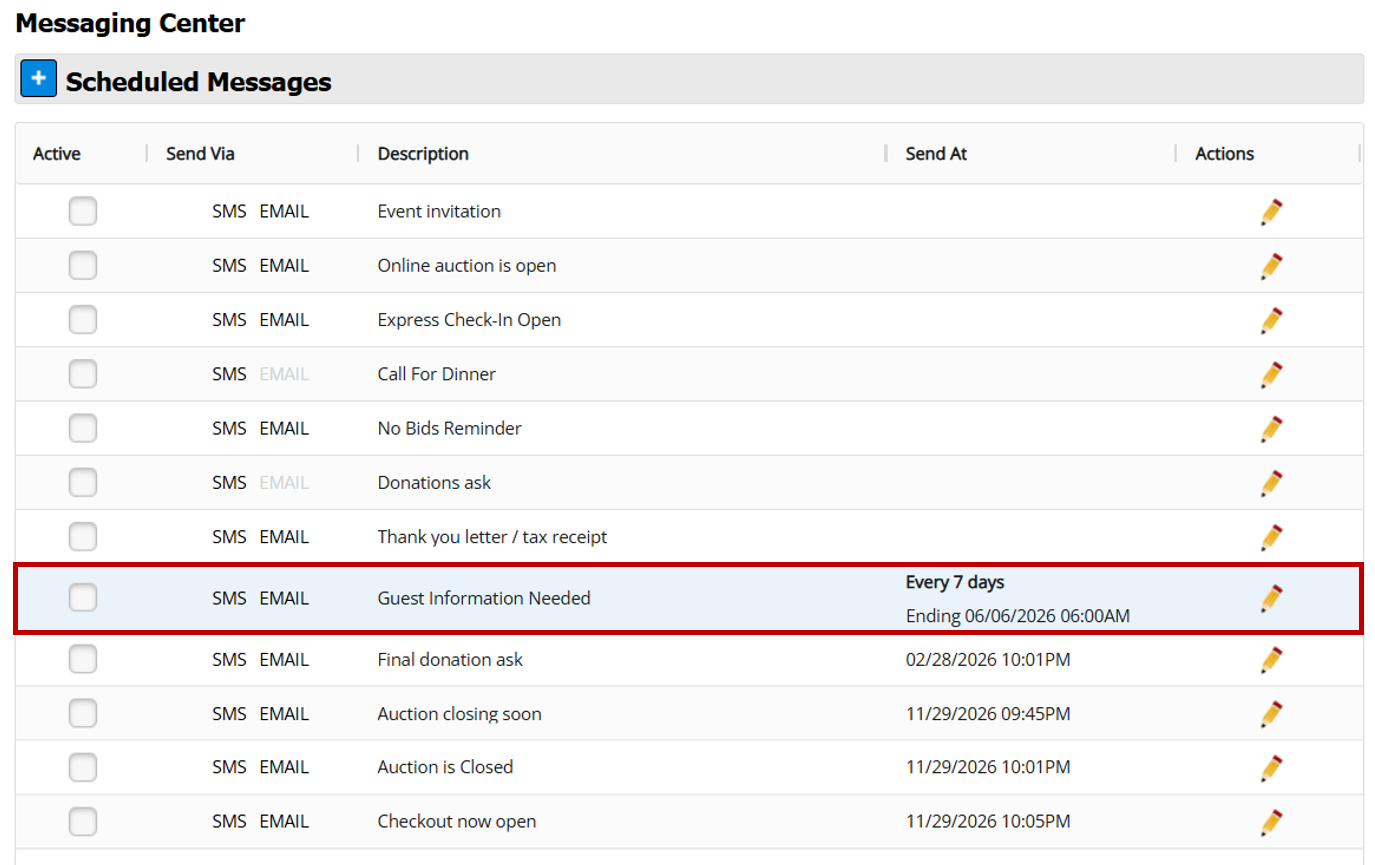
- Set up automatic recurring reminders by navigating to Messaging > Scheduled Messages and opening the Guest Information Needed template.
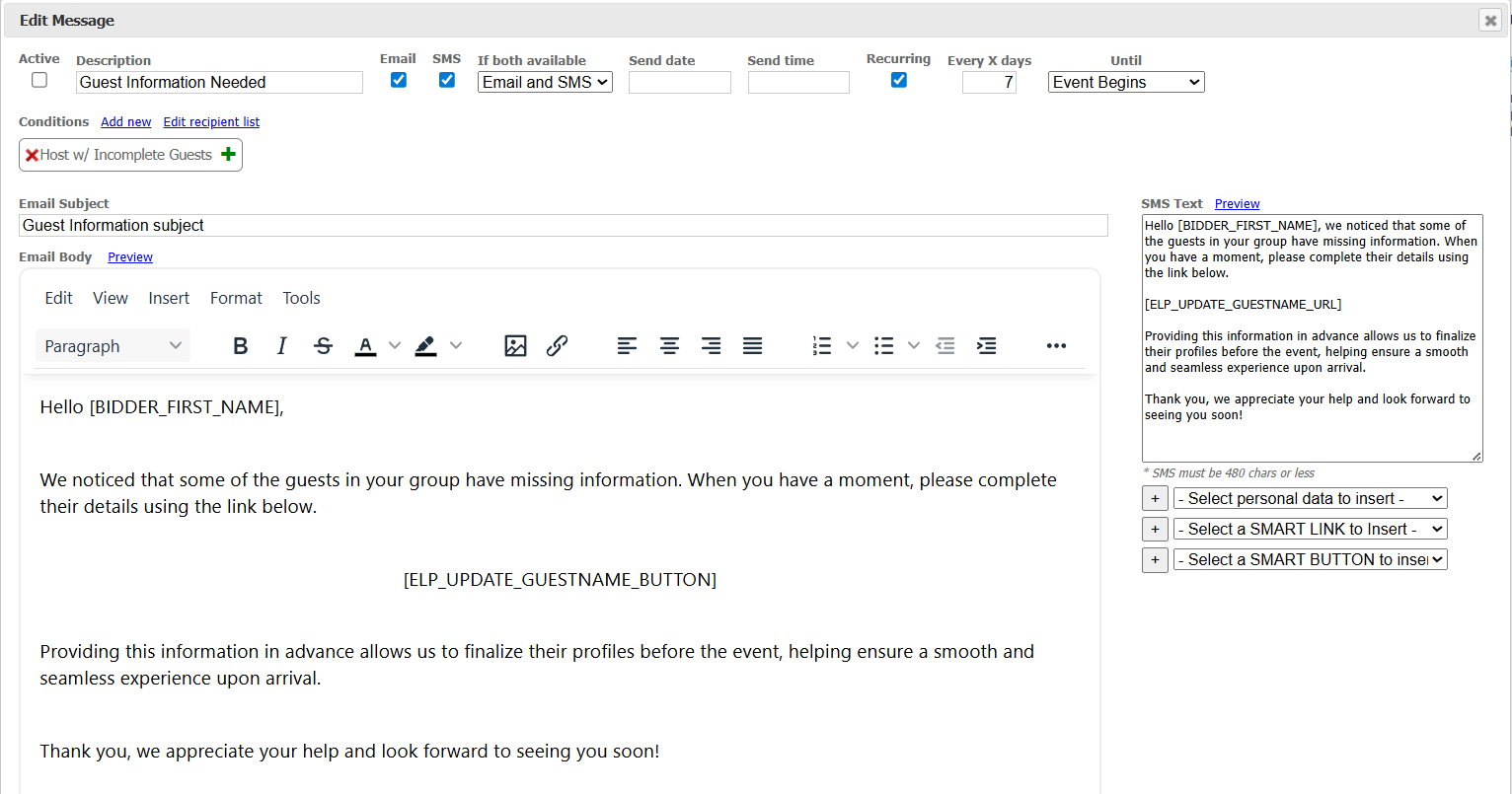
- Customize this message content and schedule automatic delivery. Reminders stop for each host once they complete guest information for all their tickets.
How did we do?
Express Check-In for Households
Hero Banner Image Specs
