Table of Contents
Grid Controls
Customize contributor, item, and package grids with multiple display modes. Export data to Excel/CSV, personalize columns, and save preferences automatically per device.

Table of Contents
DISPLAY MODES
CONTRIBUTORS Grid Display Options
The CONTRIBUTORS grid offers three display modes to view contributor data in different ways:

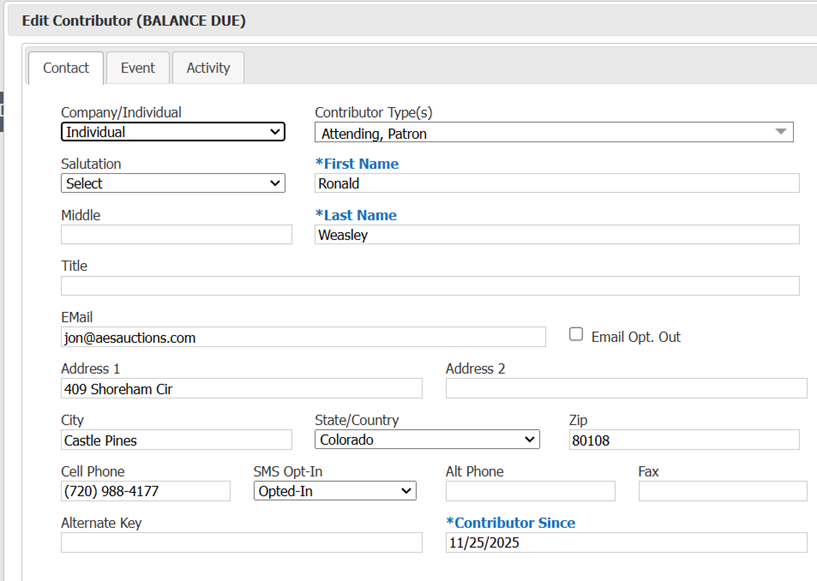
• Individual/Company: Shows one row per contributor with individual totals for purchases, amounts, balance due, and payment status. Each contributor's data is displayed separately, even when they belong to a household.

In this example, Ronald and Hermione are household members, but each shows their unique activity and totals.
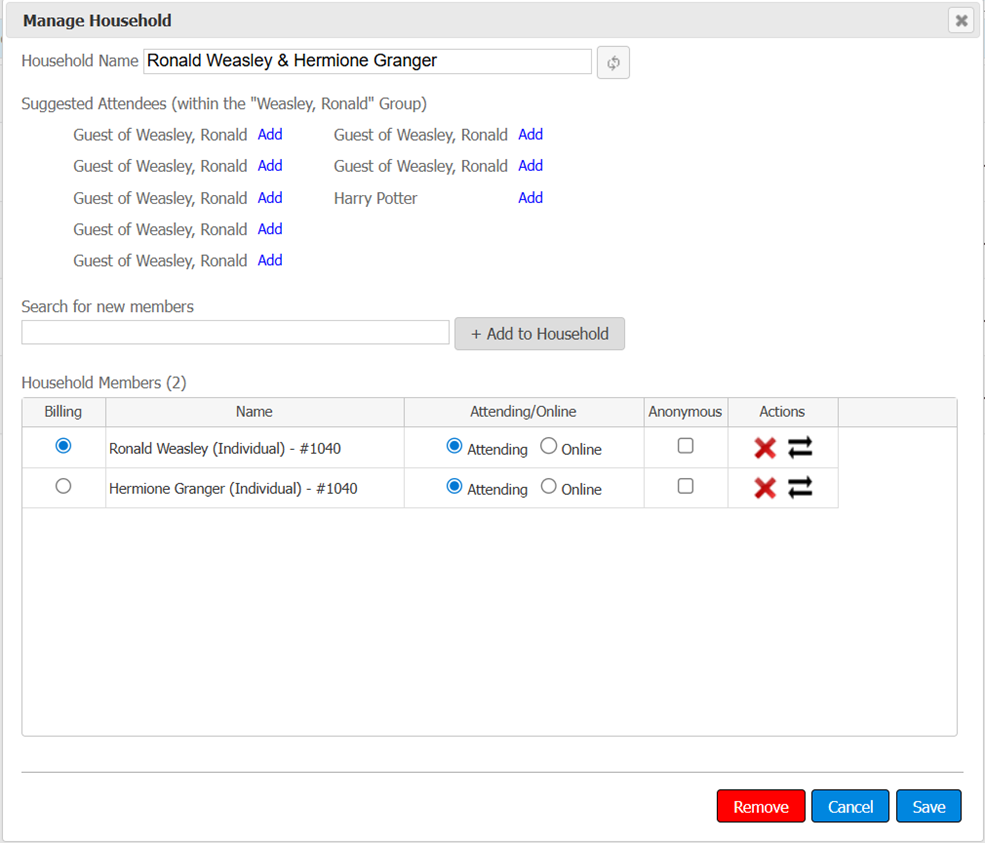
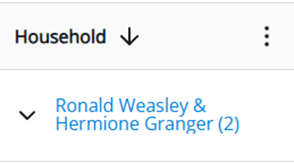
• Households: Displays one row per household, expandable to show individual members. The household row shows combined totals for all members, making it easy to track spending by household unit.

In this example, Ronald and Hermione's household shows a combined commitment of $1,537.50, with Ronald designated as the Billing Contact.
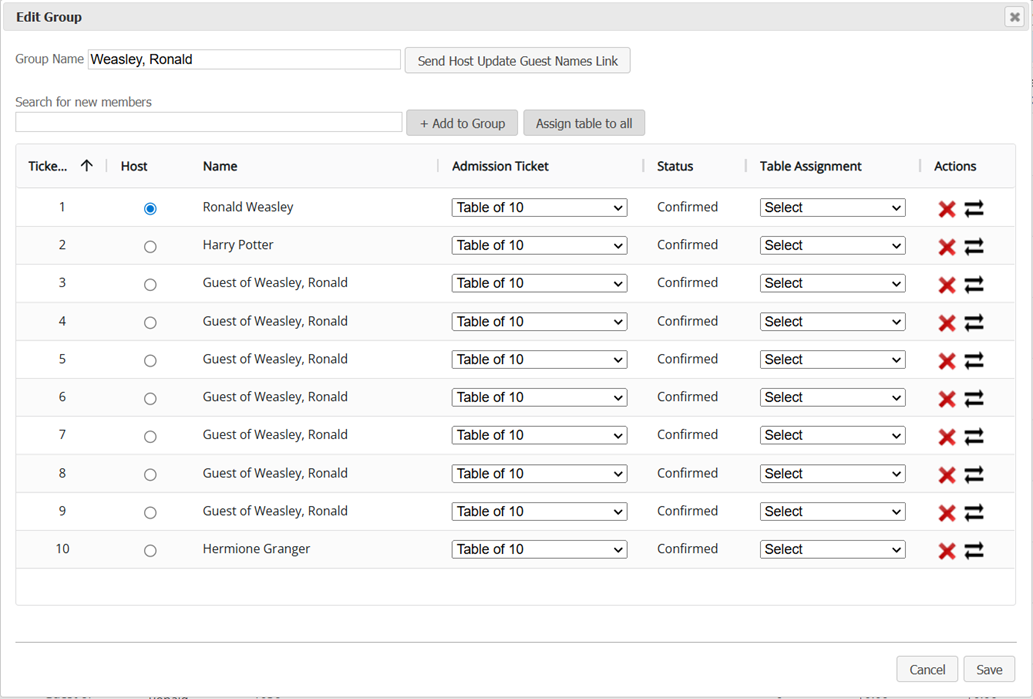
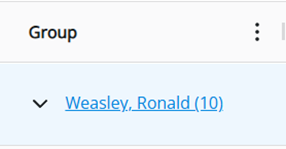
• Groups: Shows one row per group, expandable to reveal group members. This view is useful for table purchases or group registrations where one person controls multiple tickets.
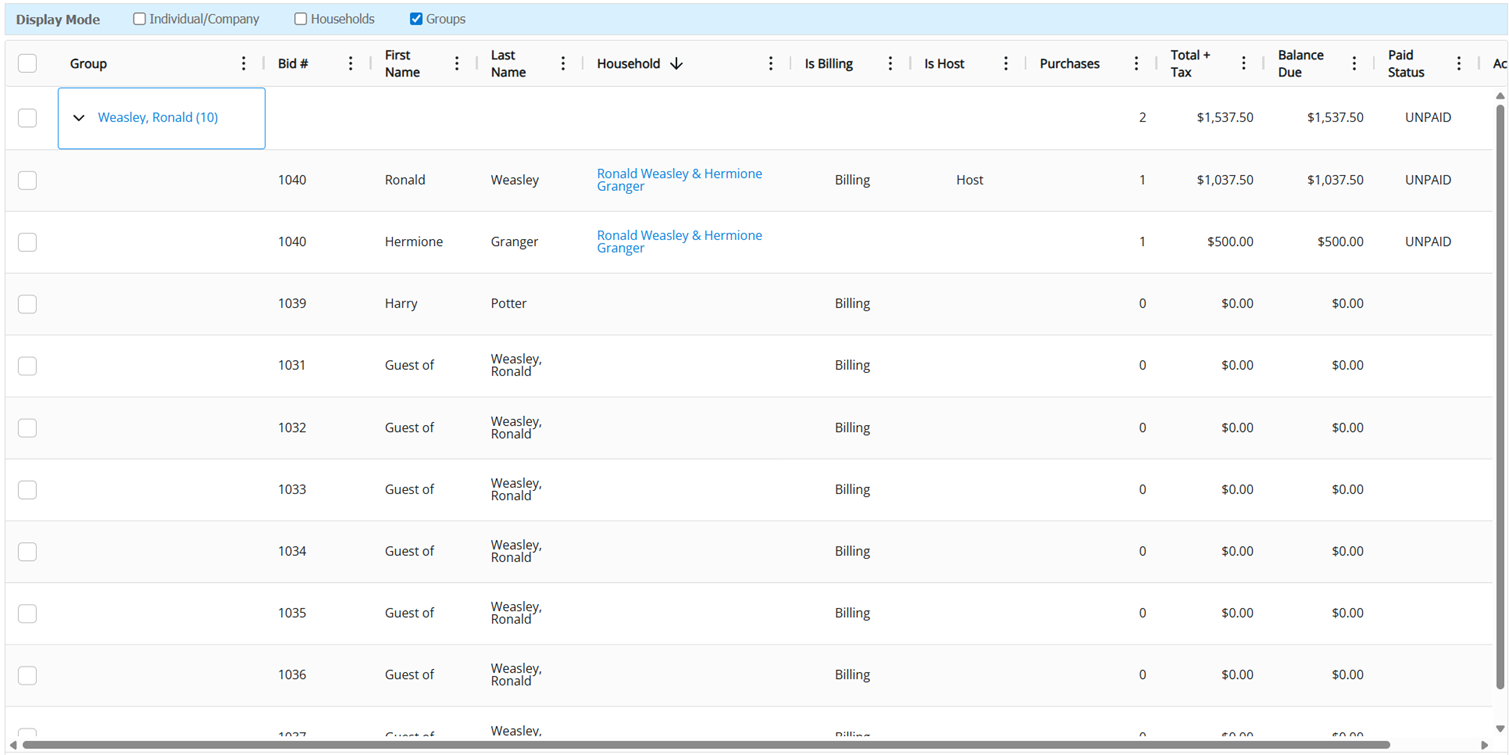
In this example, Ronald purchased a table of 10 and invited Hermione and Harry to join. The remaining 7 tickets are unassigned, and Ronald serves as the Host with control over all 10 tickets.
ITEMS Grid Display Options
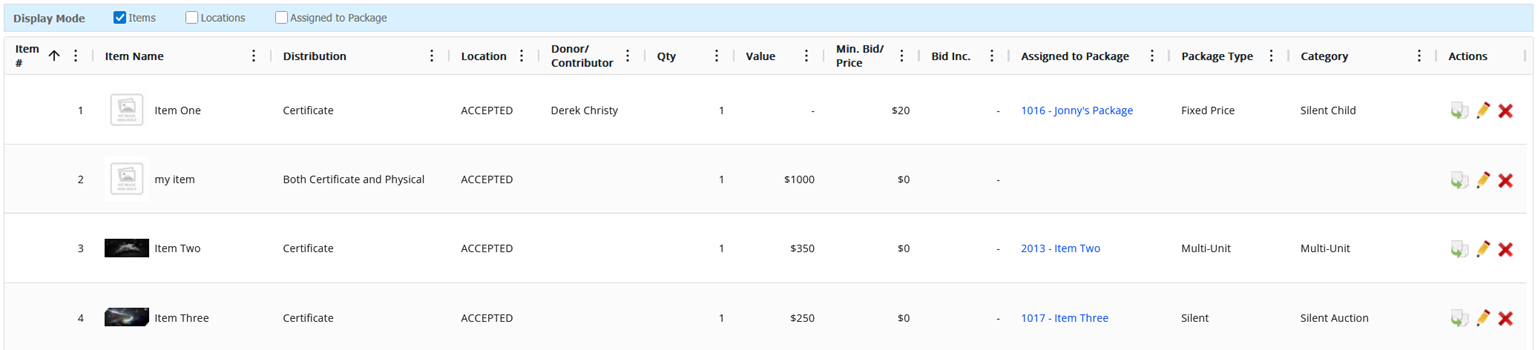
The ITEMS grid provides three ways to organize and view auction items:

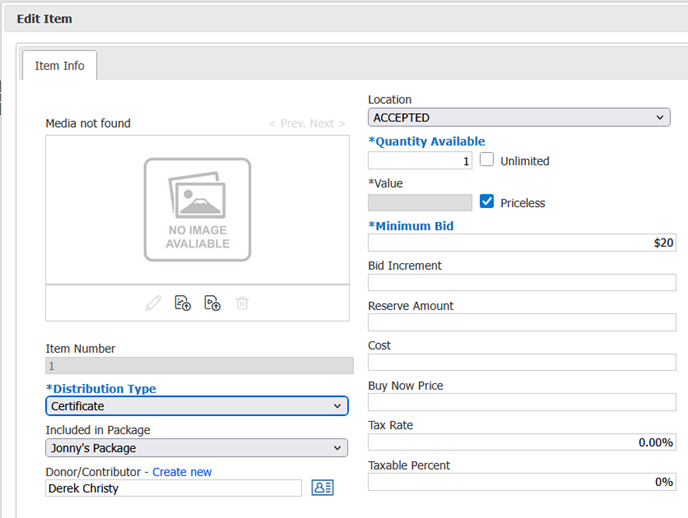
• Items: Standard view showing one row per item with all item details.
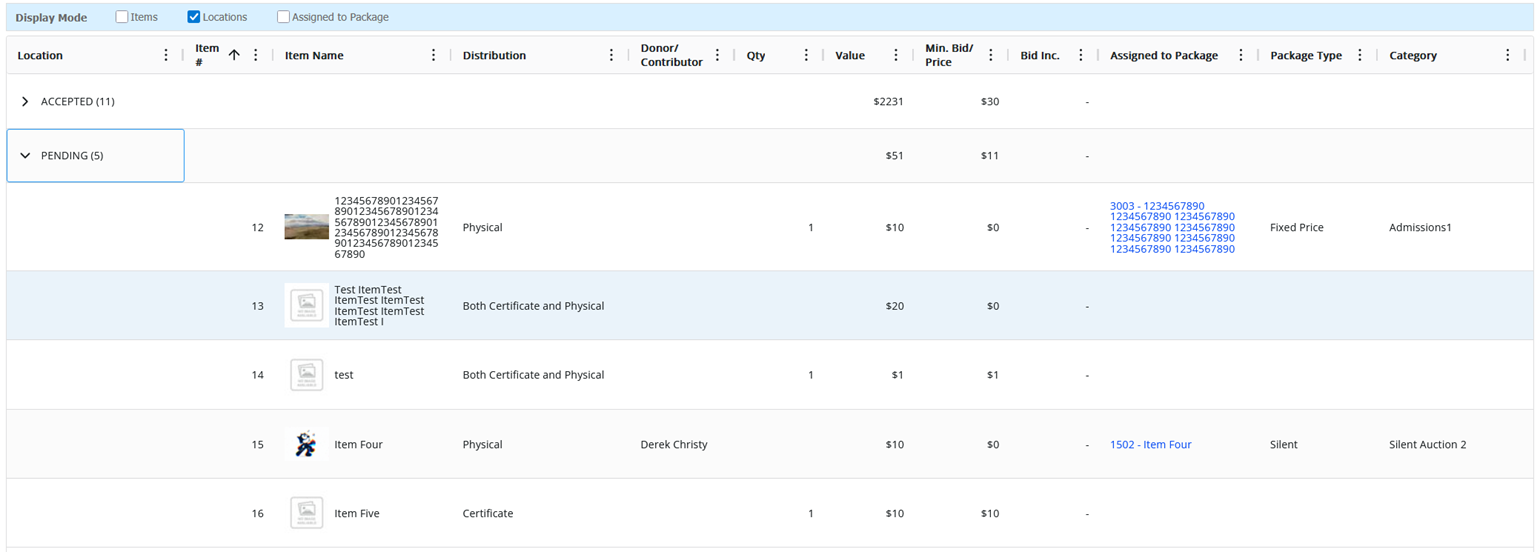
• Locations: Groups items by location with expandable rows. Values, minimum bids, and bidding increments are totaled for each location, providing quick location-based summaries.
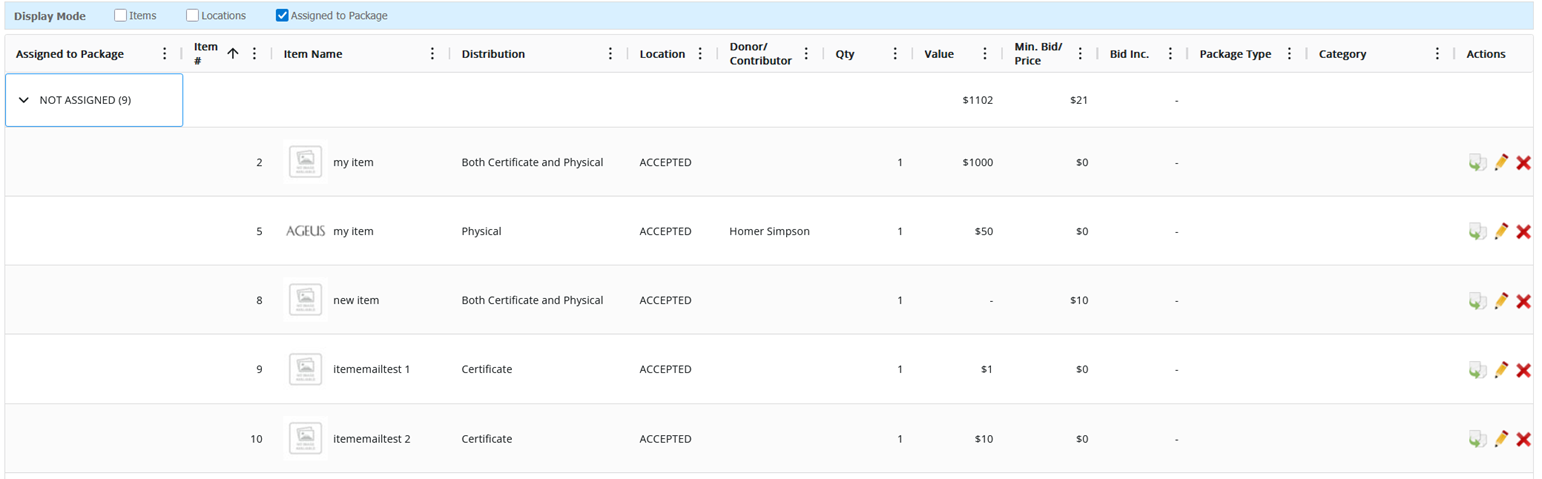
• Assigned to Package: Organizes items by package assignment with expandable rows. Like the location view, this totals values and bids within each package for easy package-level analysis.
PACKAGES Grid Display Options
The PACKAGES grid offers three organizational views:

- Packages: Standard view with one row per package
- Locations: Groups packages by location with expandable rows
- Categories: Organizes packages by category with expandable rows
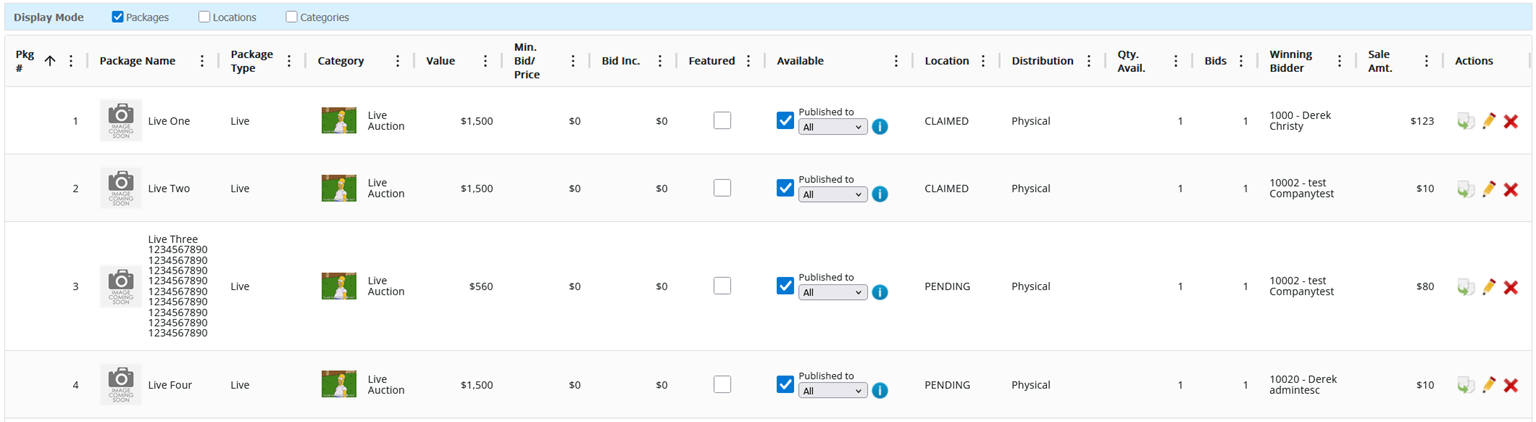
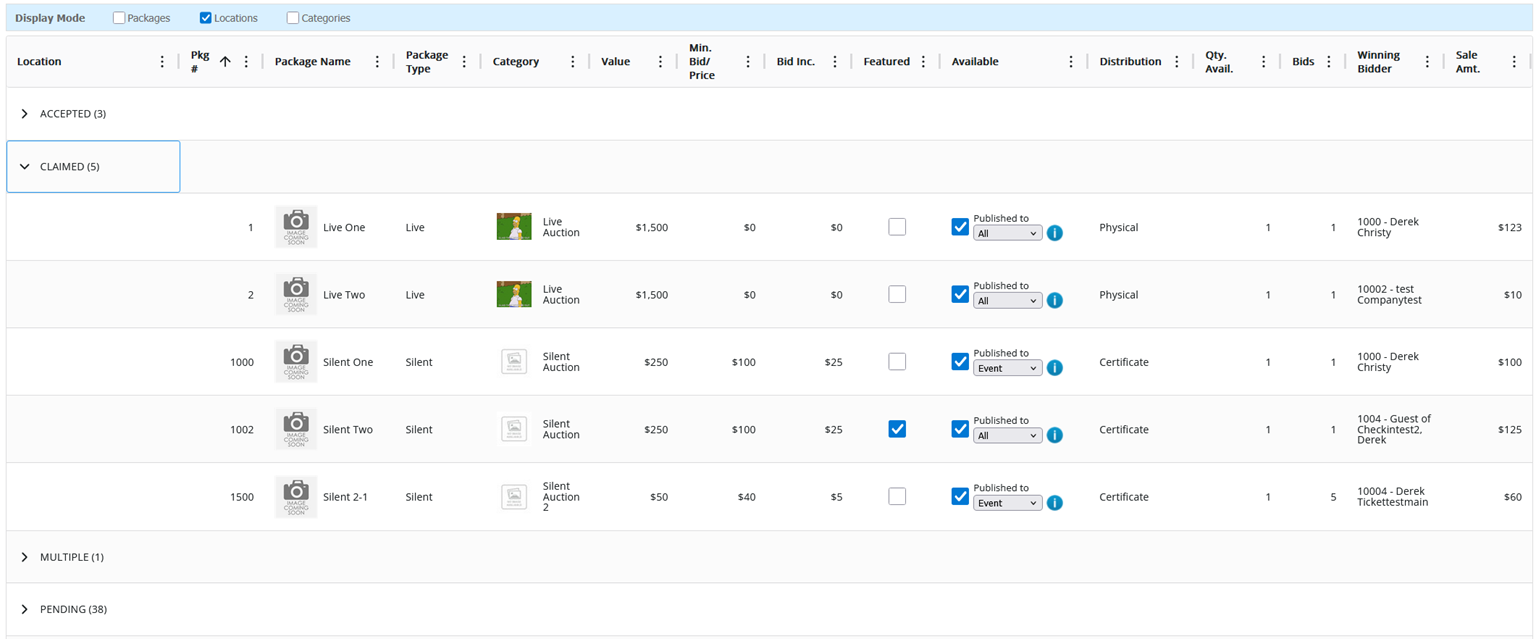
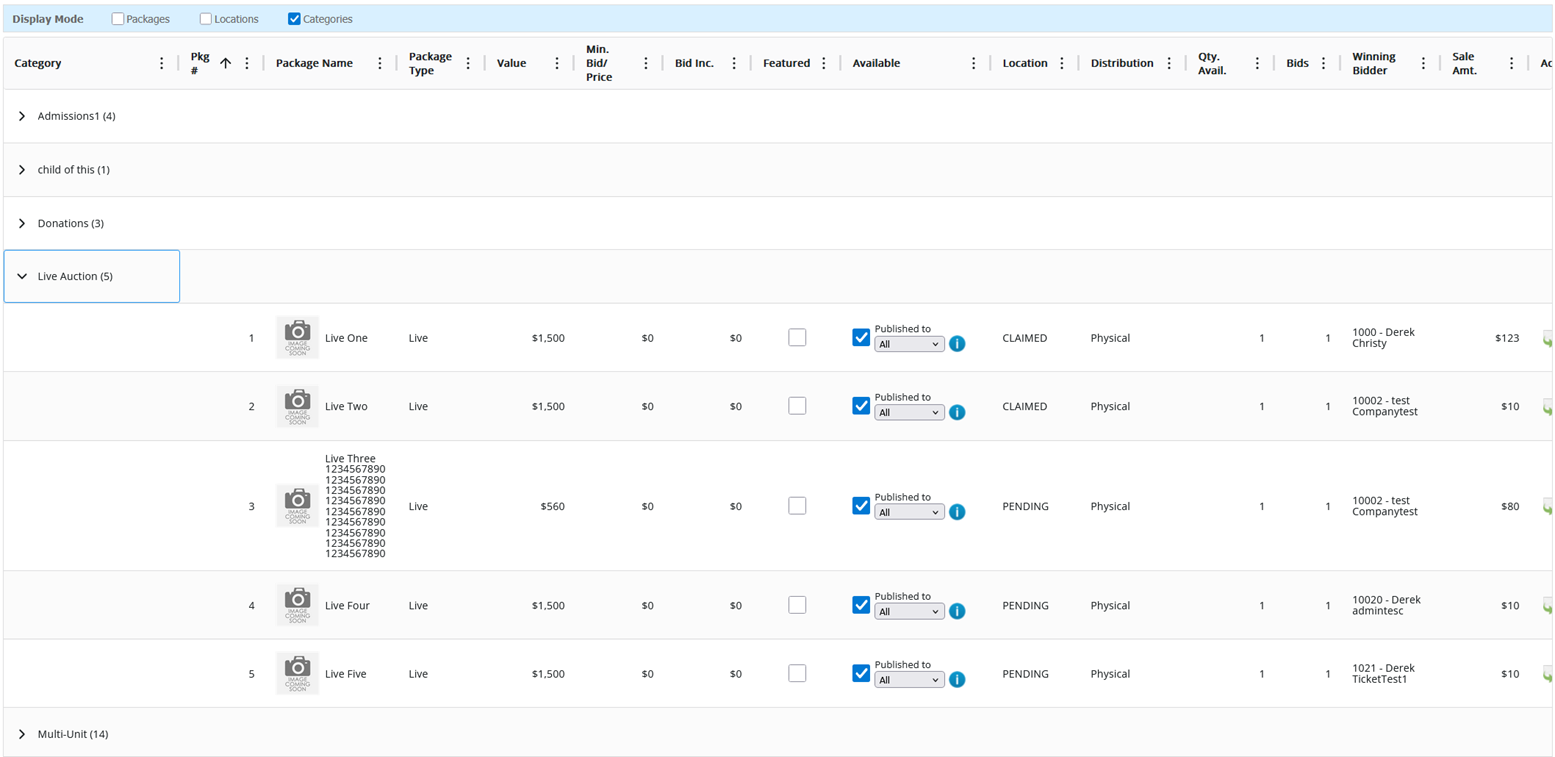
EXPORTING GRID CONTENTS
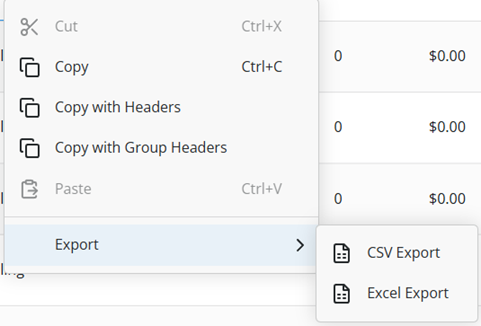
Export any grid data to Excel or CSV format using these methods:
- Click the Export button in the upper right corner of main grids
- Right-click anywhere on any grid and select the export option
- Copy and paste grid contents to Excel (with or without headers) via the right-click menu
CUSTOMIZING COLUMN DISPLAY
Personalize your grid view by selecting which columns to display and arranging them in your preferred order.
To customize columns:
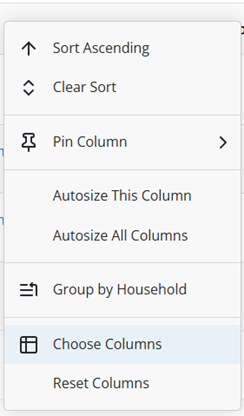
- Right-click anywhere in the grid header
- Select "Choose columns"
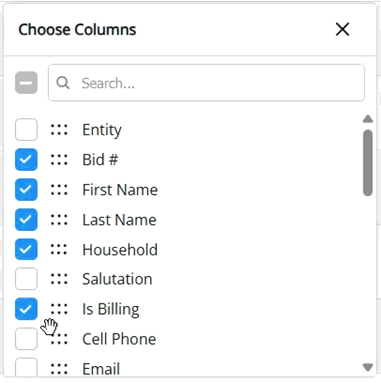
- Check or uncheck columns to show or hide them
- Drag columns to reorder them

SAVED GRID PREFERENCES
Your grid customizations are automatically saved and remembered across sessions on a per-device basis. This allows you to maintain different views for different devices - for example, showing all columns on your office computer while using a simplified view on your tablet or laptop.
How did we do?
Details & Location
Item/Package Location
