Reviewing Pending Approvals
The Pending Approvals Summary is where you track sales that need payment before they're finalized. Once those payments come through, everything automatically updates—the revenue hits your event payme…

The Pending Approvals Summary is where you track sales that need payment before they're finalized. Once those payments come through, everything automatically updates—the revenue hits your event payment totals and the attendees get properly registered.

Finding Pending Approvals
When you've got sales waiting on payment, a Pending Approval (X) button shows up automatically on your Contributors screen. The number tells you how many households have outstanding sales. No pending sales? The button stays hidden.
What You'll See in the Summary
Click that button and you'll get a breakdown of everything waiting on approval:
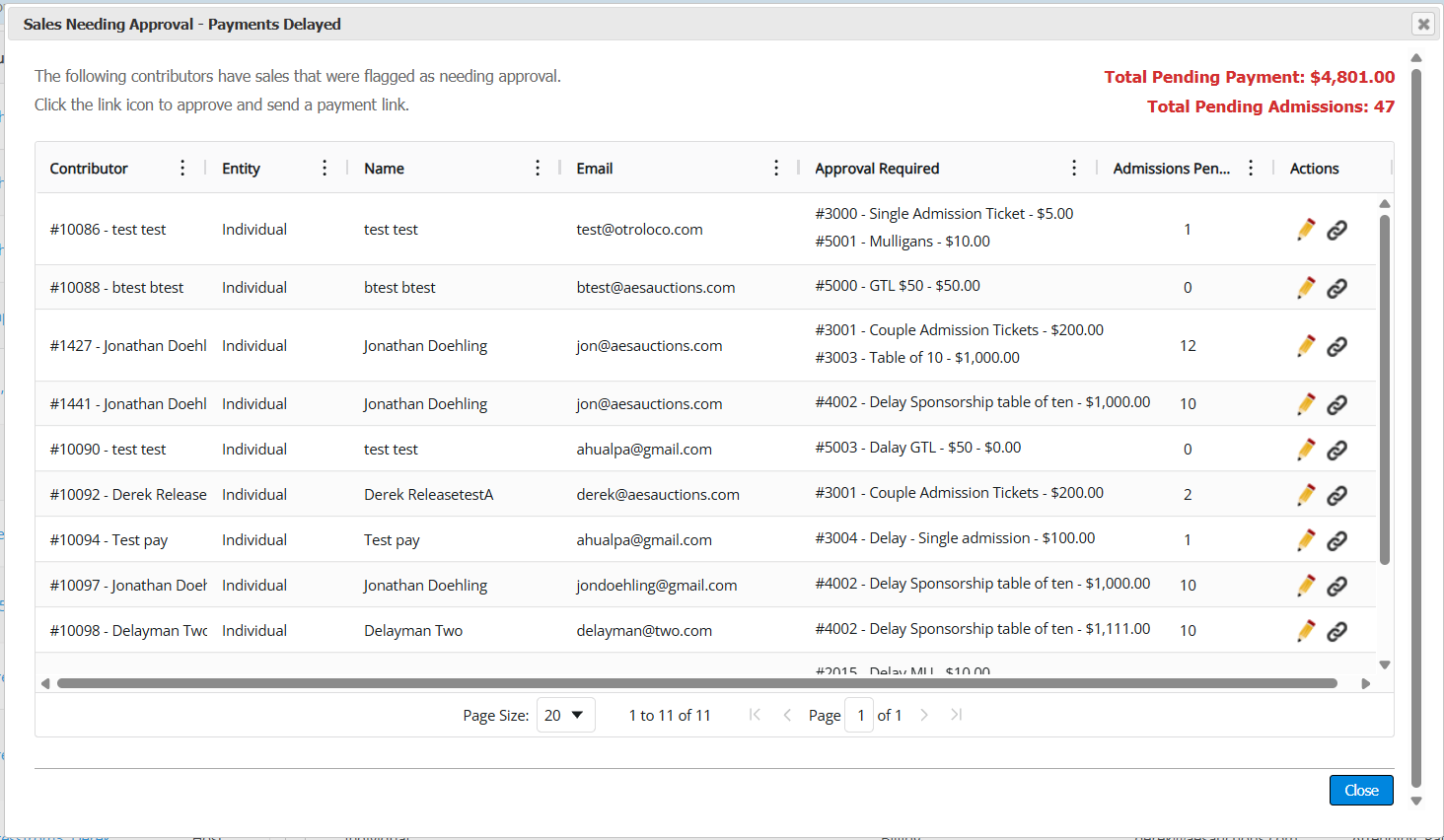
Financial & Attendance Totals
Right at the top, two numbers are highlighted in red:
- Total Due: The dollar amount for all pending sales combined
- Admissions Pending: How many new contributor records will be created once these payments go through
The Household Grid
The grid organizes everything by Billing Owner (learn more about billing contacts and households) so you can handle entire families at once:
- Approval Required: Every package or donation waiting on payment—package number, title, and cost
- Admissions Pending: The number of event attendees tied to those specific sales
- Contact Info: Name and email for the billing contact
Taking Action
You've got two options for processing these items directly from the grid:
Review Activity
Click the Edit (Pencil) icon to open the contributor's record and see their full activity history. This is helpful when you need context before reaching out.
Send Payment Link
Click the Link icon to open the Payment Link tool. Once your customer pays through that link, the sale gets approved and any associated admissions are automatically created—no manual work needed.
Handling Denied Purchases
Related Articles:
Creating and Sending Payment Links
/getActivity API call
How did we do?
Releasing Accepted Tickets Back to the Host
Sponsored Admission Tickets
