Delay Payment for Review
Delay Payment for Review lets buyers reserve packages without immediate payment, holding them for staff approval. Once approved, send a payment link for completion.

Some packages shouldn't be paid for the moment someone clicks "buy." A table sponsorship may need approval from your development director. A discounted ticket may need to be verified before you collect. Delay Payment for Review lets a buyer reserve a package through your event site without being charged, and puts the purchase in front of your staff for approval first.
When the purchase is approved, you send the buyer a payment link and they complete payment on their own time.
This article covers:
- Turning delayed payment on for a package
- Writing the message buyers see at checkout
- What the buyer experiences
- Reviewing and approving a delayed purchase
- Adding a delayed purchase manually
Part 1: Turn on Delay Payment for Review
Delayed payment is set per package, so you can hold sponsorships for review while regular admission tickets are paid immediately.
- From the event dashboard, go to Setup.
- Click the Microsite tab at the top of the page.
- In the left navigation, select Ticketing Page.
- Locate the package you want to hold for review. Packages are grouped into Tickets and Admission Packages, Sponsorships Packages, and Multi-Unit Packages.
- Check the Delay Payment for Review box on that package's row.
Repeat for every package that should be held. Packages left unchecked continue to collect payment at checkout as usual.

Part 2: Write the message buyers will see
When a buyer checks out with a delayed package, the system replaces the payment fields with a message you write. This message is the buyer's only explanation of what's happening, so it's worth writing carefully.
- On the General settings screen, scroll down to the very bottom for the Delay Payments for Review – Instructions.
- Enter your message in the editor. Two short paragraphs work well: one stating that they will not be charged today, and one telling them what happens next.
- Use the formatting tools to emphasize the key line if you'd like.
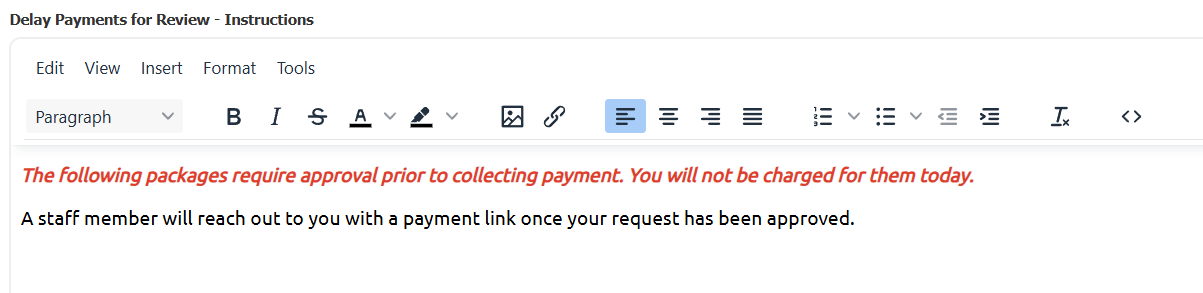
Sample wording:
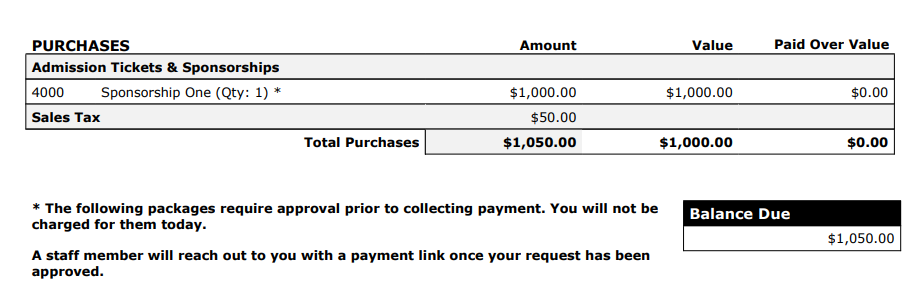
The following packages require approval prior to collecting payment. You will not be charged for them today.
A staff member will reach out to you with a payment link once your request has been approved.
This same text appears on the buyer's checkout page and again on their receipt.
Part 3: What the buyer sees
Nothing on the public ticketing page marks a package as delayed. Buyers browse and select packages exactly as they normally would.

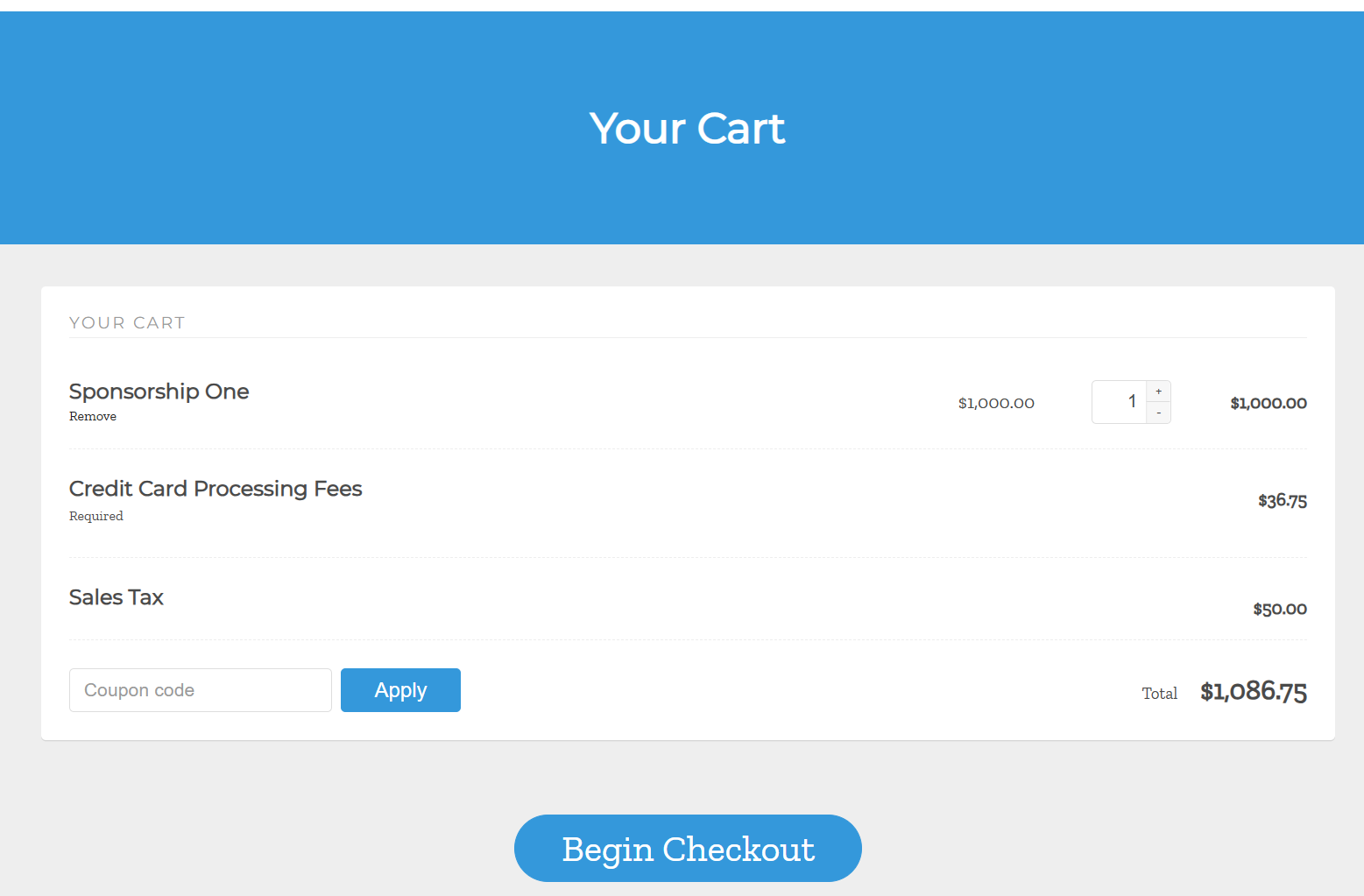
The cart also behaves normally, showing the package price, any processing fees, and sales tax.
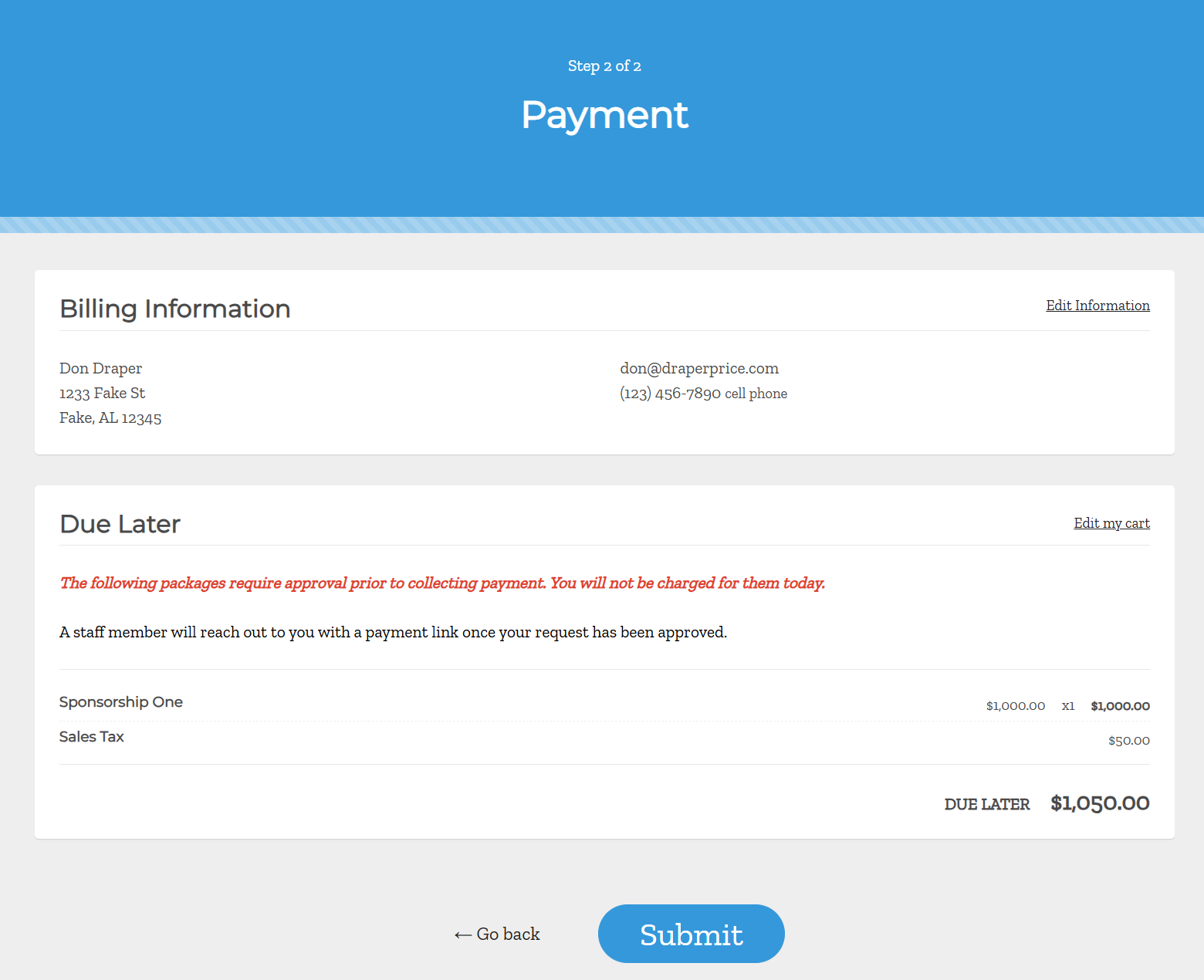
The difference appears at the Payment step. Instead of credit card fields, the buyer sees a Due Later panel containing your instructions message, the held package, and the total that will be owed once approved. There is nothing to pay — the buyer simply clicks Submit to send the request. Note that the standard steps of collecting guest and sponsor information are skipped, because the sale has yet to be approved by the organization. That information will be collected (if approved) when the buyer is sent a payment link.
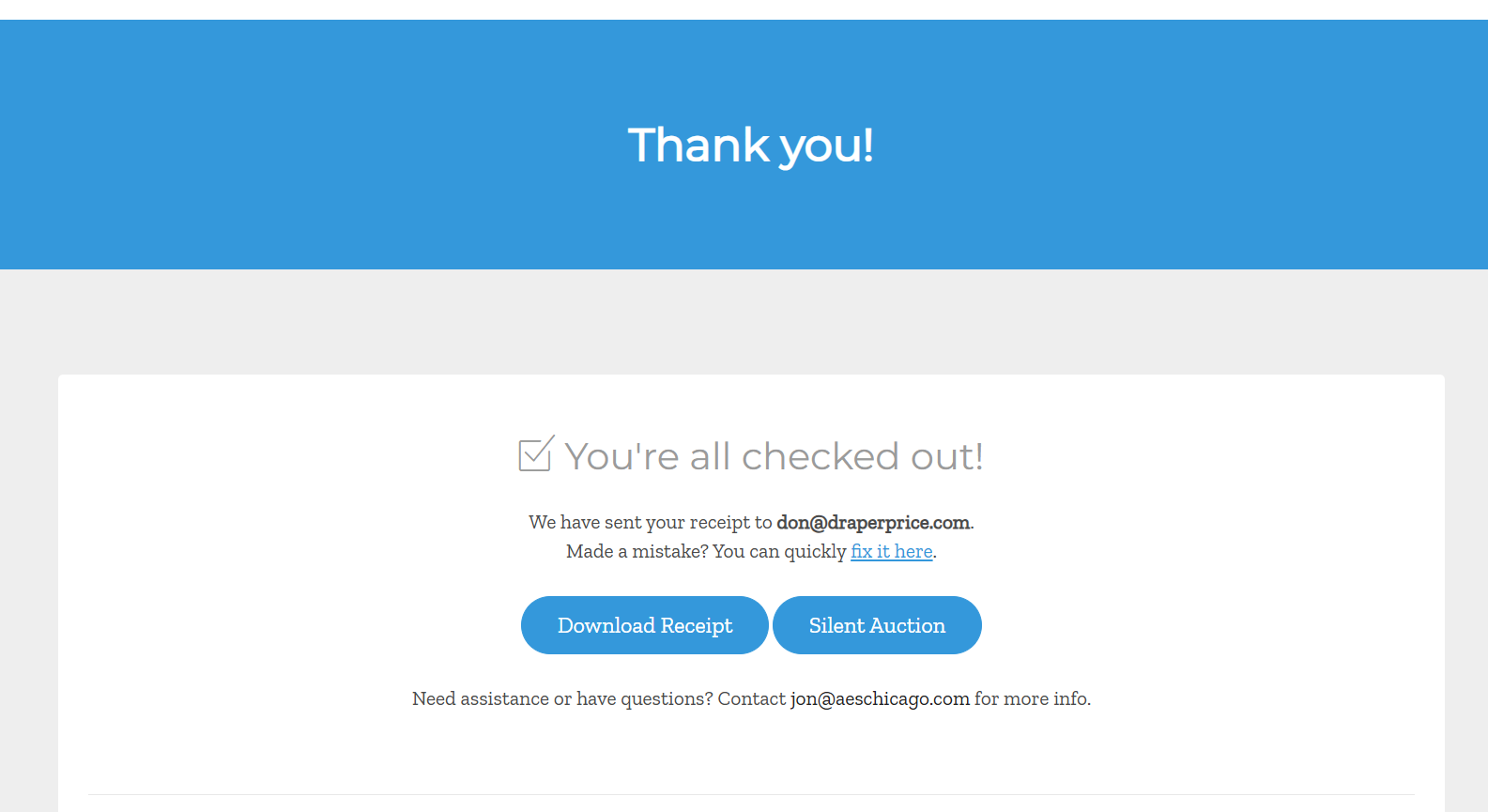
After submitting, the buyer lands on the standard confirmation page and can download a receipt. They are also emailed a receipt.
The receipt marks the held package with an asterisk, repeats your instructions, and shows the full amount under Balance Due — so the buyer has a written record of what they've reserved and what they'll owe.
Part 4: Review and approve the purchase
Delayed purchases appear in the contributor's record, flagged for your team.
Find the pending purchase
- Go to Contributors.
- Locate the contributor and open their record.
- Open the Activity tab.
Under Purchases, the held package is labeled Approval Required. The contributor's record shows a balance due, and no payment has been taken.

Approve and create a payment link
Approving the purchase means releasing it for payment and generating a link the buyer can use.
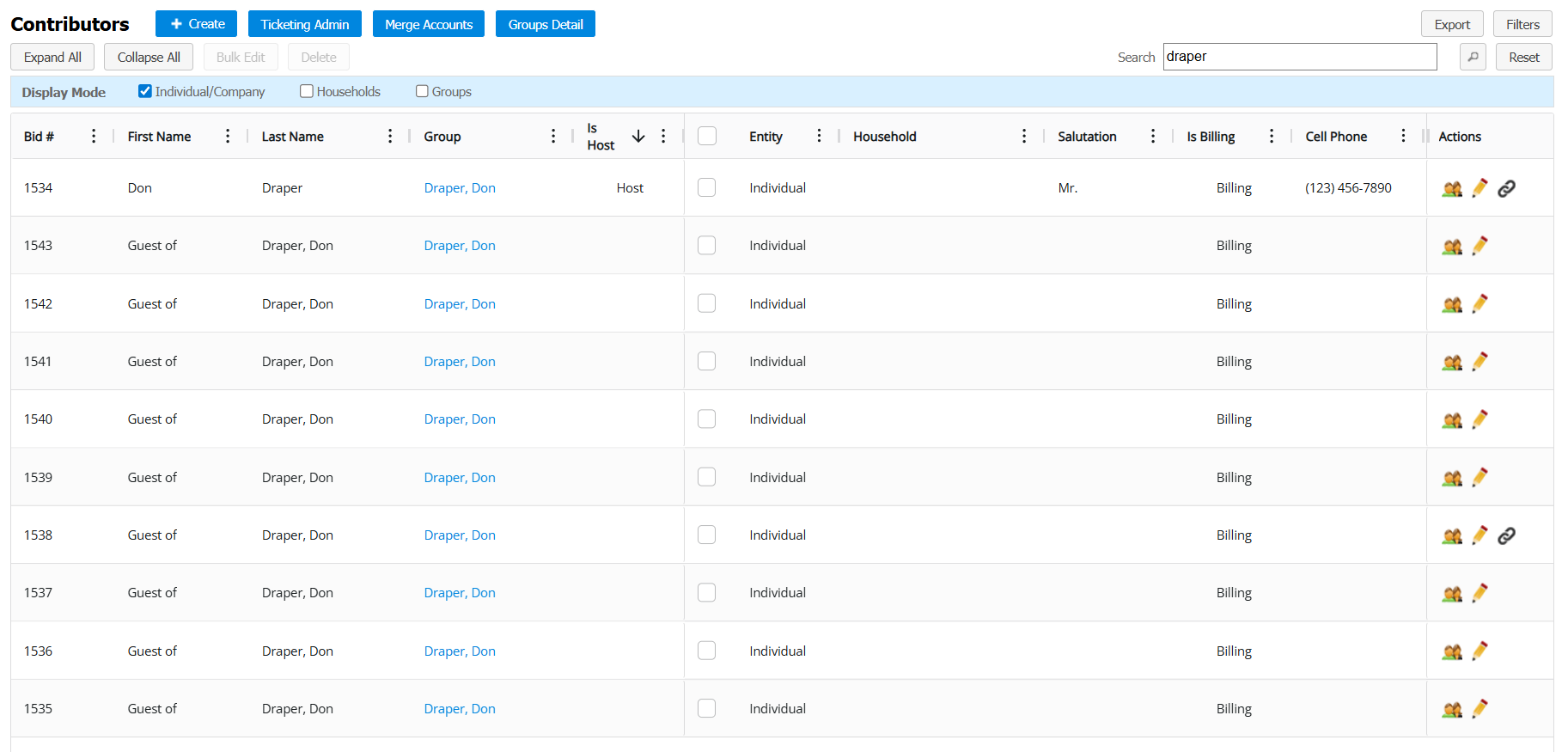
- From the Contributors grid, click the payment link icon in the Actions column for that contributor.

- The Payment Links window opens, listing any links already created for them.
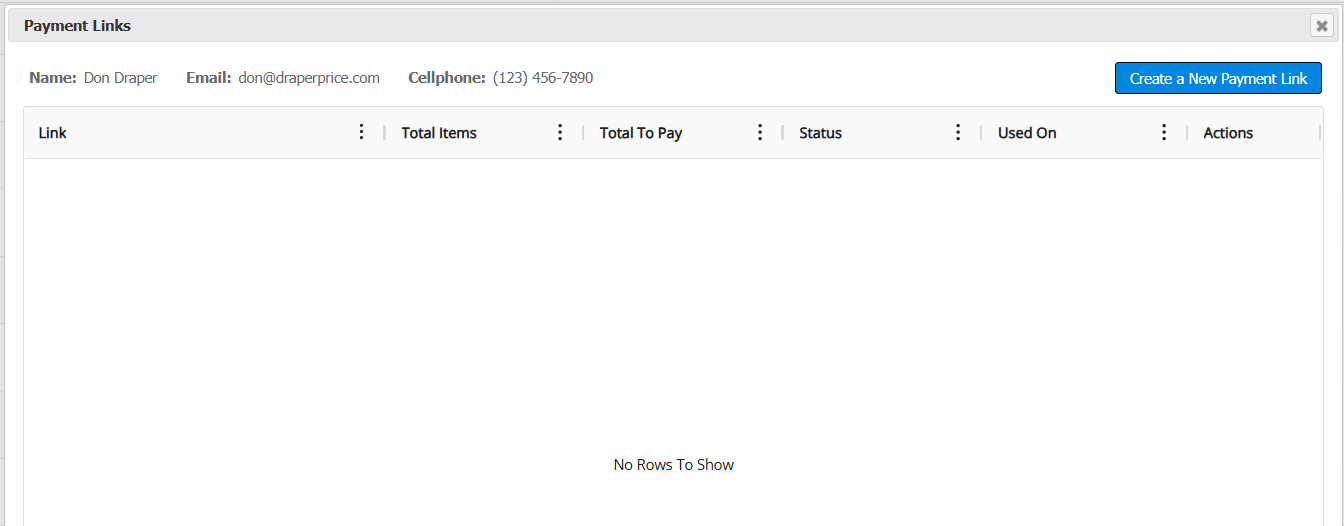
- Click Create a New Payment Link. The Sales dialog opens, listing the contributor's outstanding items.
- The held package shows a check in the Delayed column. Uncheck to approve it, which will automatically check the box in the Pay column to include the item in this payment link.
- (Optional) Edit the Amount field to collect a partial payment. The Total at the bottom updates to match. Leave it at the full amount to collect everything at once.
- Click Save and Create Payment Link.
Choose Save Draft instead if you want to set the payment up now but not generate the link yet.
The new link appears in the Payment Links list with a status of Pending, along with the total to be paid.
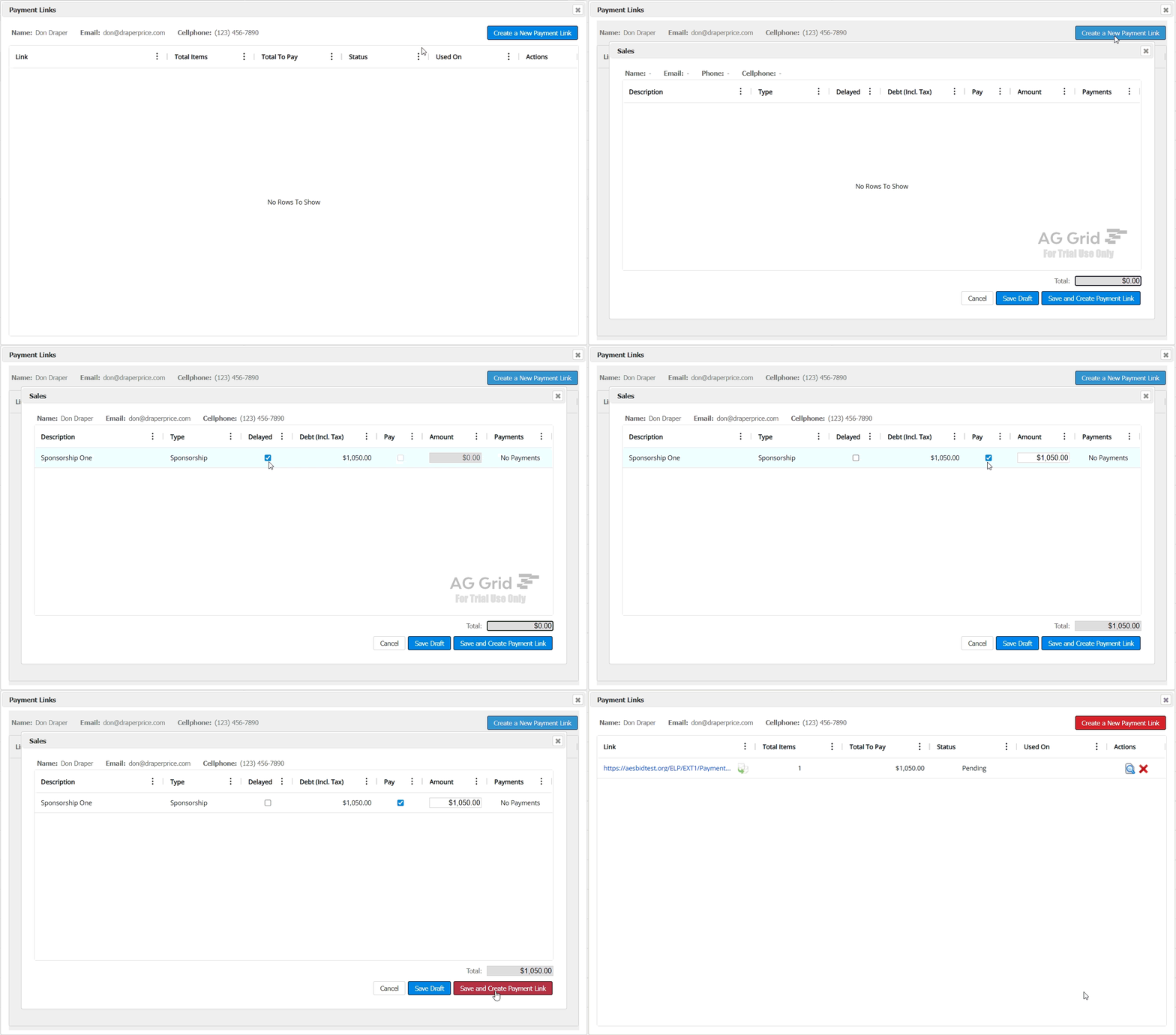
You may now copy the link to your clipboard and send it to the buyer using your own email or other method.
The buyer completes payment
Opening the payment link takes the buyer through a short checkout flow:
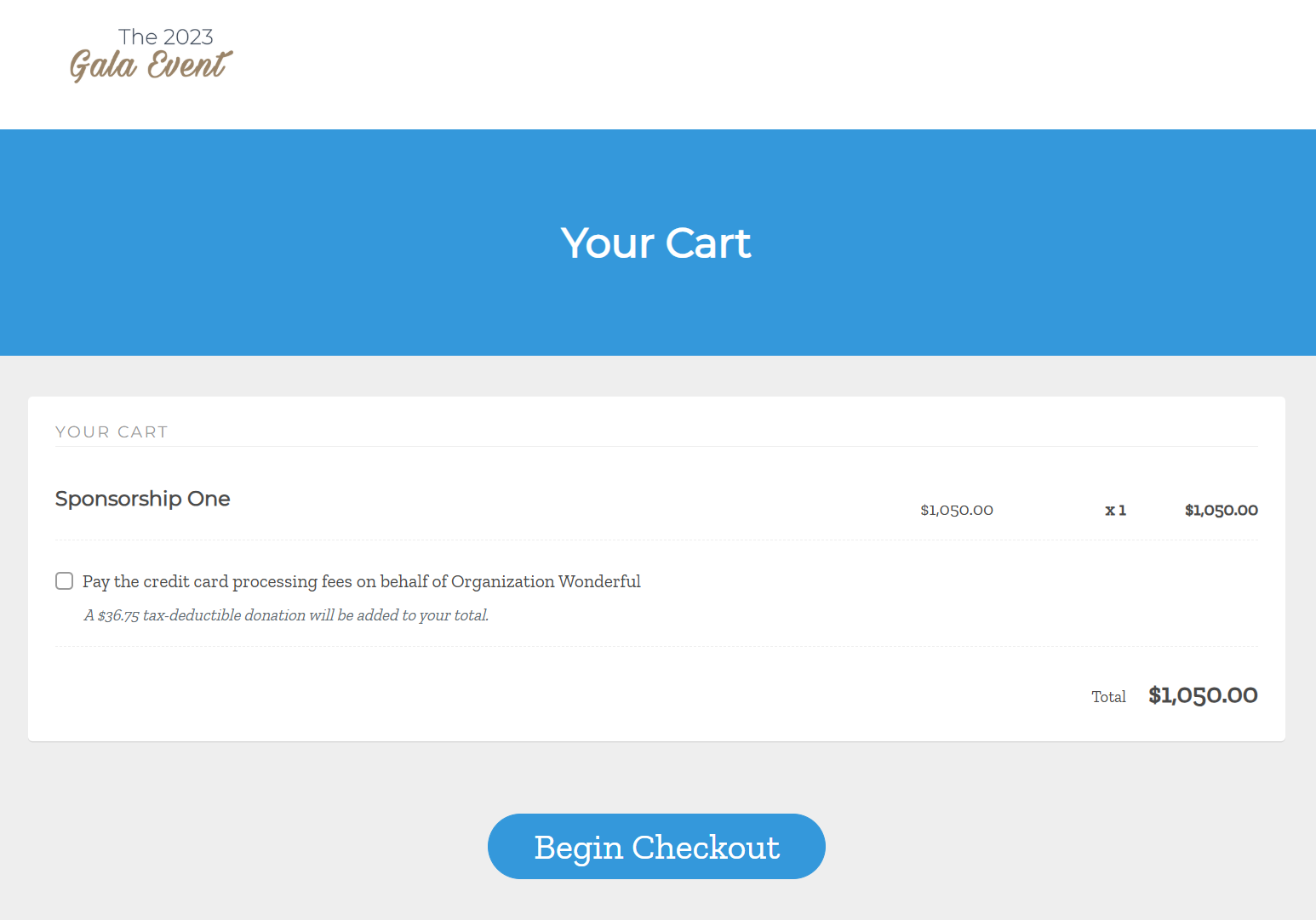
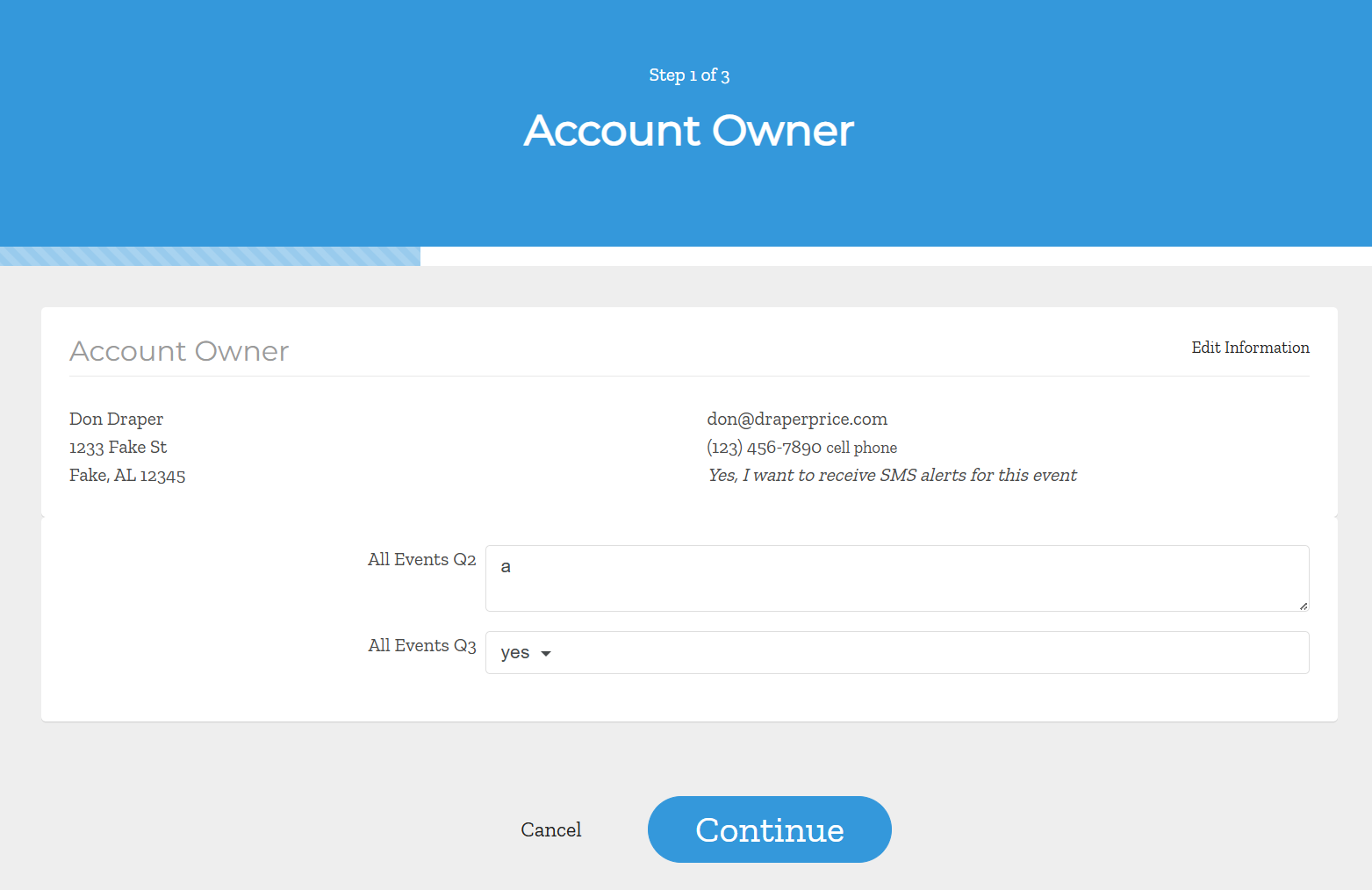
- Account Owner — confirm contact details and answer any custom questions.
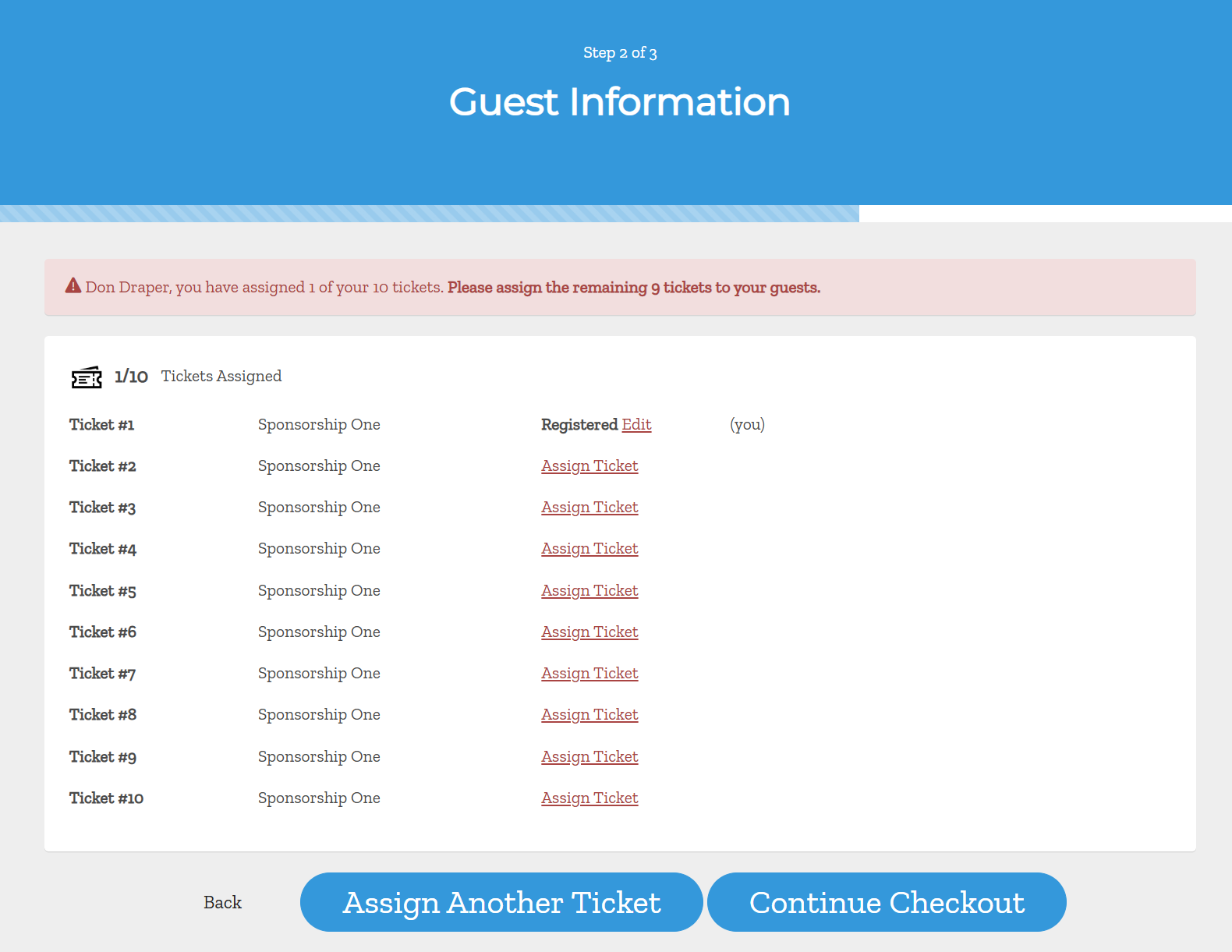
- Guest Information — assign the tickets included in the package. For a ten-ticket sponsorship, the buyer assigns each seat here.
- Enter Sponsor Details — enter sponsor name (required), logo, website URL, and description (optional) for public recognition.
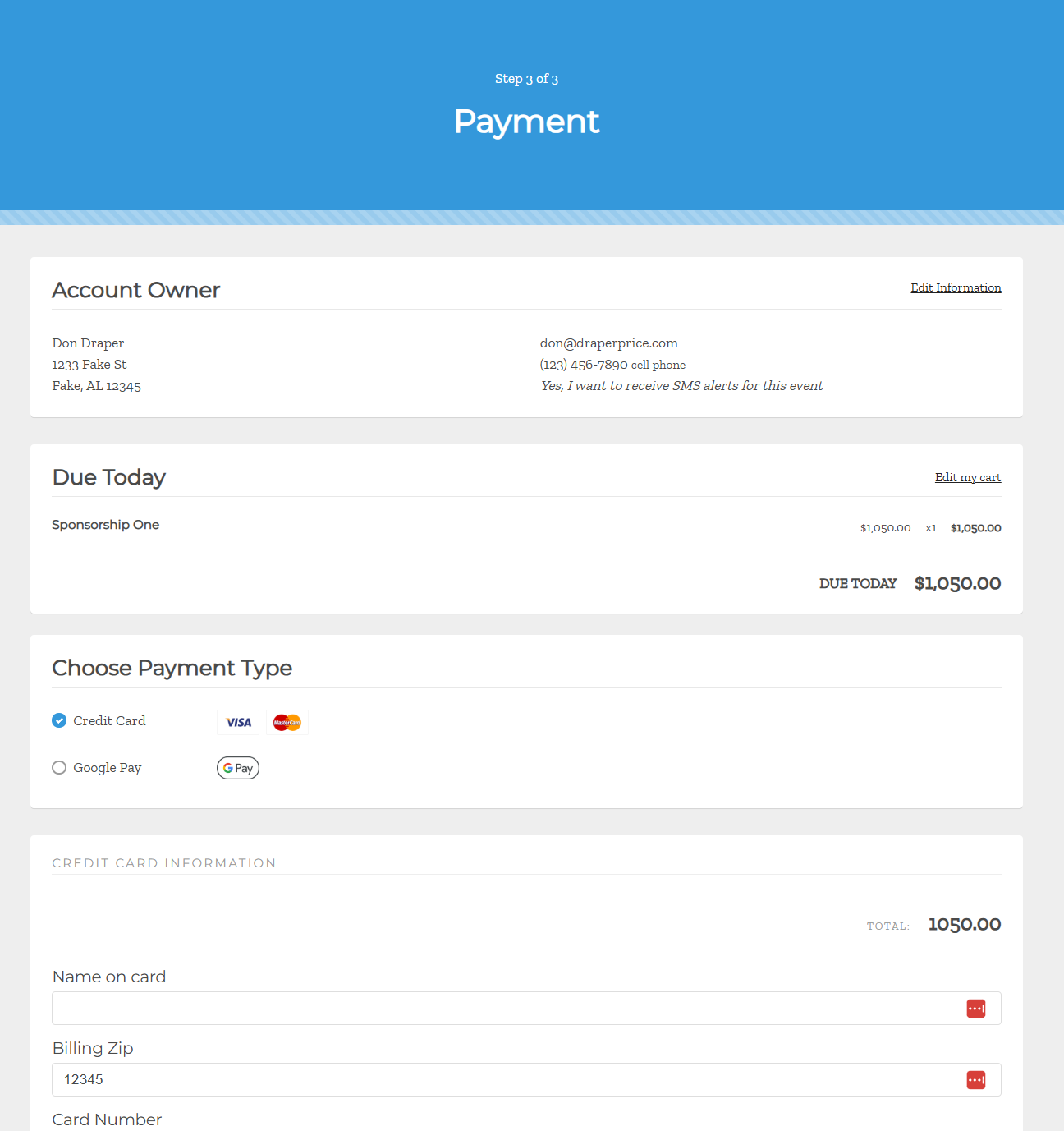
- Payment — enter card details and submit.
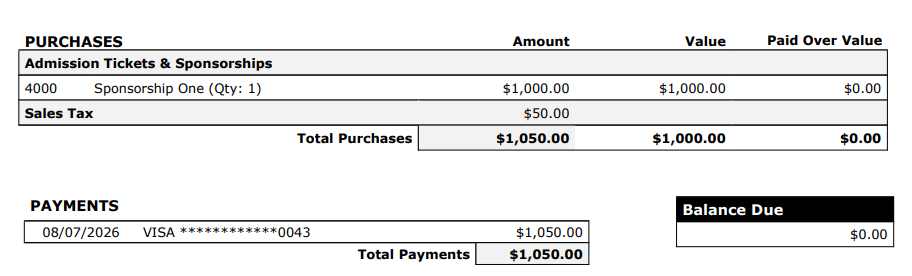
Once payment processes, the receipt shows the payment applied and a Balance Due of $0.00. The approval language is gone.
The contributor grid will now show the newly created guests, all members of the group. The sale is complete.
Part 5: Add a delayed purchase manually
You can also record a purchase for a contributor yourself — useful when a sponsor commits by phone or email rather than through the event site.
- Go to Contributors and open the contributor's record.
- On the Activity tab, click Add a Purchase.
- Choose the package from the Package To Sell list and enter the price.
- Save the purchase.
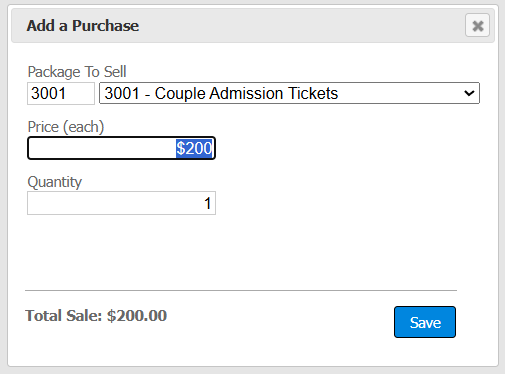
The purchase now sits on the contributor's record with a balance due, and you can create a payment link for it using the same steps in Part 4.

Frequently asked questions
- Can I delay some packages but not others? Yes. The setting is per package. A buyer can purchase a regular ticket and a held sponsorship in the same transaction — they'll be charged for the ticket and the sponsorship will move to Due Later.
- Does the buyer's card get charged when they submit? No. No payment method is collected for a delayed package. The contributor's record shows a balance due until a payment link is paid.
- Can I collect a deposit instead of the full amount? Yes. Edit the Amount field in the Sales dialog before creating the payment link. The remaining balance stays on the contributor's record, and you can create another link for it later.
- What if we decide not to approve the purchase? Remove the purchase from the contributor's Activity tab. Because no payment was taken, there's nothing to refund.
- Can the buyer still be assigned tickets before paying? The tickets are attached to the package on the contributor's record. Guest assignment happens as part of the payment link checkout.
How did we do?
Coupon Codes for Event Ticketing
Event Ticketing/Microsites
