Creating and Sending Payment Links
A payment link is a personal checkout page for one contributor and one specific balance. You generate the link from their record, send it to them however you like, and they pay online without you han…

A payment link is a personal checkout page for one contributor and one specific balance. You generate the link from their record, send it to them however you like, and they pay online without you handling a card.
Payment links work for any sale with an outstanding balance — not just purchases held for approval. If a contributor owes money on a sponsorship, a table, a ticket, an auction win, or anything else on their record, you can create a link for it.
This makes payment links a good alternative to a bulk reminder from the Messaging Center. A blast to everyone with a balance due is generic by necessity: it can't reference the specific table someone reserved or the conversation you had with them last week. A payment link lets you write one personal email — "Hi Susan, great talking Thursday about the Gold table. Here's the link to complete payment when you're ready" — with a link that goes straight to their balance. For major sponsors and larger balances, that personal note tends to collect faster than a generic reminder.
Use the Messaging Center when you need to reach many people at once. Use payment links when the relationship warrants a personal message.
This article covers:
- Creating a payment link
- Collecting a partial payment or deposit
- Sending the link to your contributor
- What the contributor sees
- Managing existing links
Before you start
The contributor must have an outstanding balance on their record. If nothing is owed, there is nothing for the link to collect.
To add a balance manually — for a sponsor who committed by phone, for example — open the contributor's record, go to the Activity tab, and use Add a Purchase.
Create a payment link
- Go to Contributors
- Find the contributor in the grid. Use the Search box to search by name, company, group, email, or bidder number.
- In the Actions column at the right of their row, click the payment link icon.

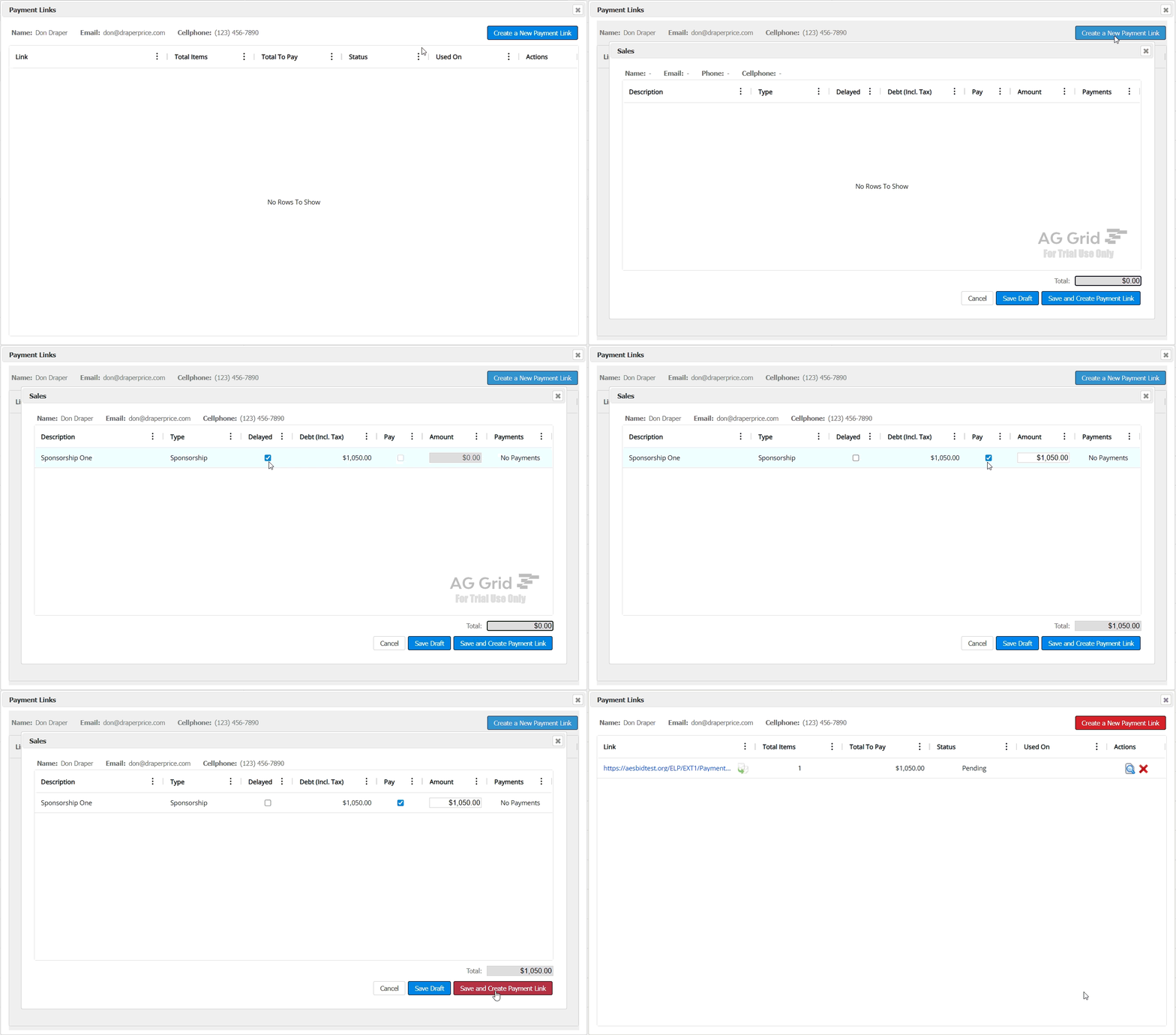
- Click Create a New Payment Link.

- The Sales dialog opens, listing everything on the contributor's record with the amount owed on each line.

The columns show:
Column | What it means |
Description | The package or item |
Type | Its category — Sponsorship, Tickets and Admission, and so on |
Delayed | Checked if this purchase is being held for approval |
Debt (Incl. Tax) | The full amount owed, including tax |
Pay | Check to include this line in the payment link |
Amount | How much to collect on this link |
Payments | Any payments already applied |
- Check the box in the Pay column for each line you want to collect.
- Verify the Total at the bottom of the dialog.
- Click Save and Create Payment Link. The link appears in the Payment Links list with a status of Pending.
Collect a partial payment or deposit
By default the link collects the full balance. To collect less, edit the Amount field on that line before saving. The Total at the bottom updates as you type.
The remainder stays on the contributor's record as an outstanding balance. You can create another link for it later — a useful way to handle a sponsor paying half now and half closer to the event.
Send the link to your contributor
Copy the link from the Payment Links list using the copy icon beside it, then paste it into your own email or text message.

Sending it yourself is the point of using a payment link rather than a bulk reminder. A few things worth including:
- What the balance is for. Name the specific package or table so there's no ambiguity.
- The amount. Confirming it in writing prevents a surprise at checkout.
- A deadline, if there is one. Sponsor recognition deadlines, program printing dates, and seating cutoffs all give a reason to pay now.
- A real signature. The value of this approach is that it reads like a person wrote it.
What the contributor sees
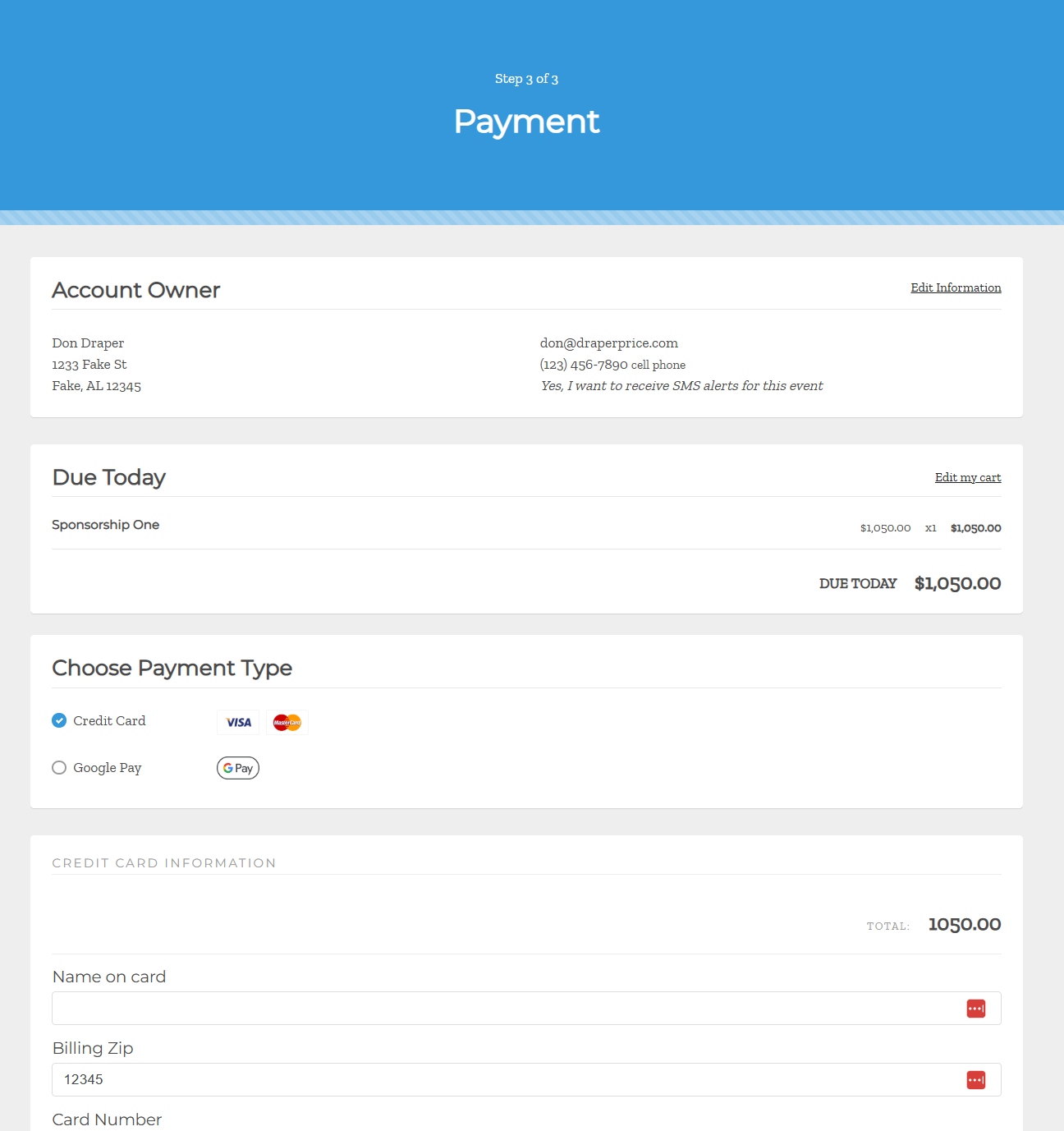
The link opens a multi-step checkout:
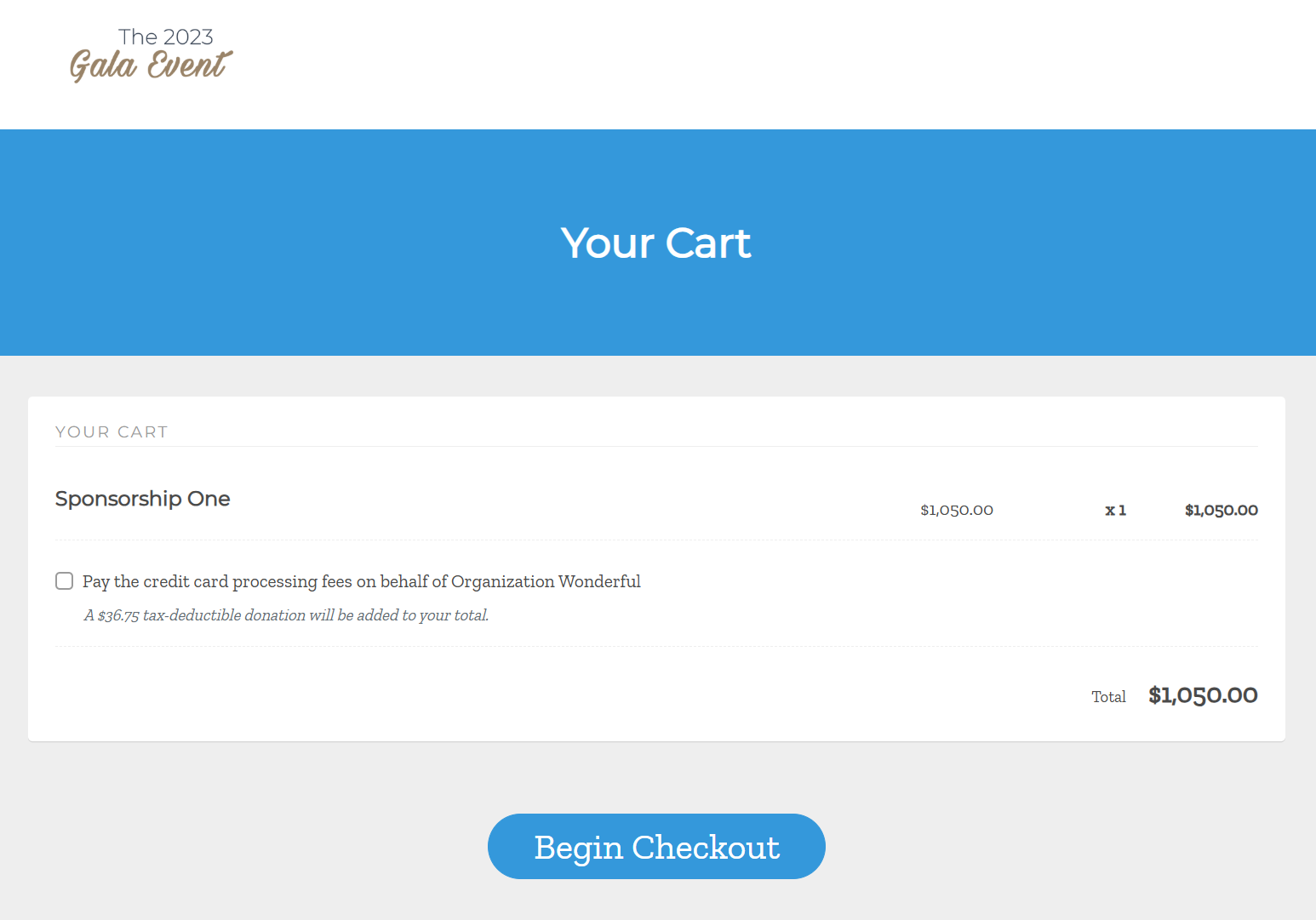
Step 1 — Account Owner. Their contact details, with a chance to correct them, plus any custom questions you've configured for the event.
Step 2 — Guest Information. If the purchase includes admission tickets, they assign those tickets here. A table of ten means ten seats to assign, and the page tracks how many remain. They can assign one to themselves and complete the rest later if your event settings allow guest edits.
Step 3 — Sponsor Details. If the purchase is for a sponsorship, they enter their sponsor details here for public recognition on the ticketing and mobile bidding sites.
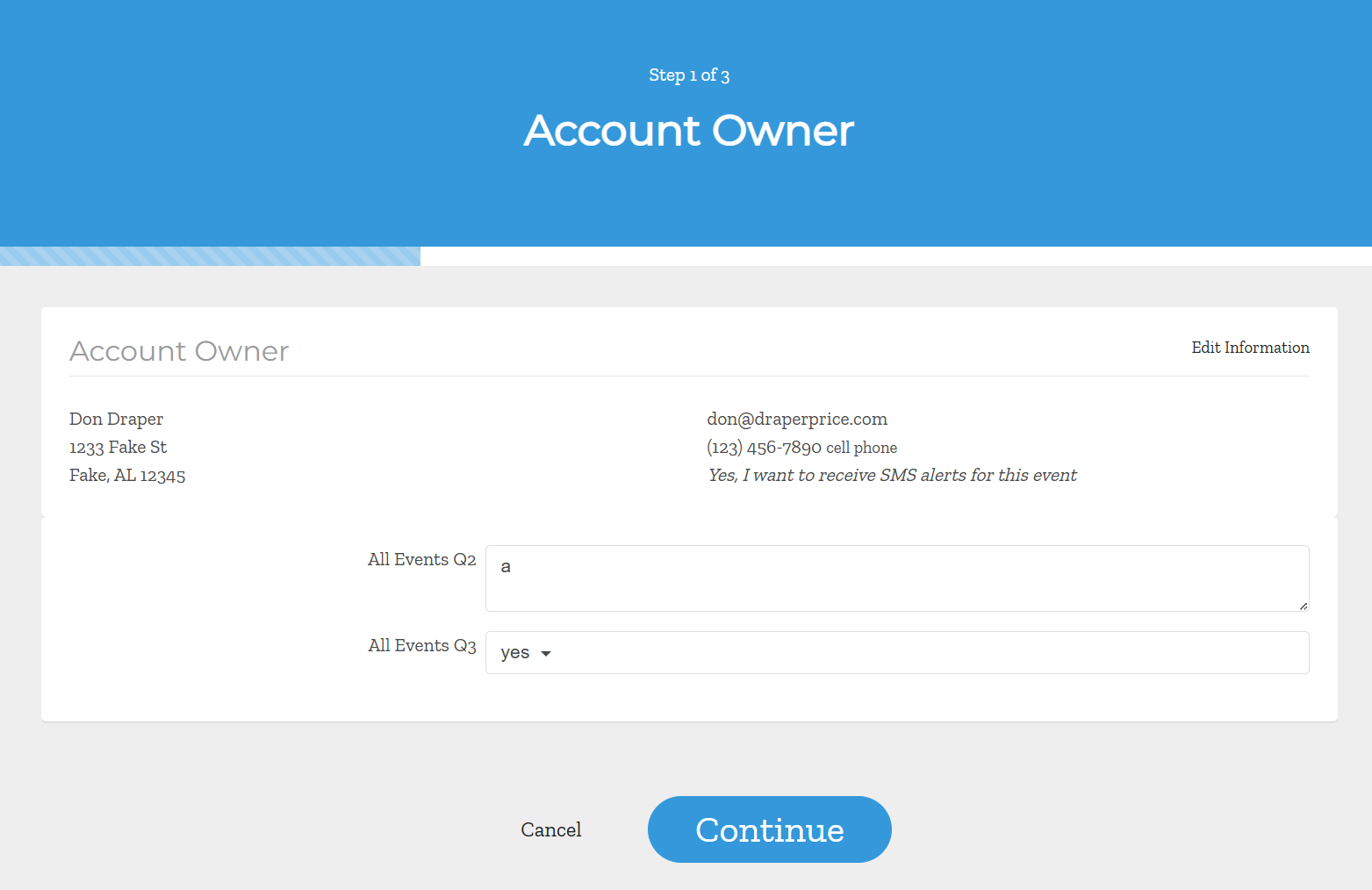
Step 4 — Payment. Card details, then Process Card.
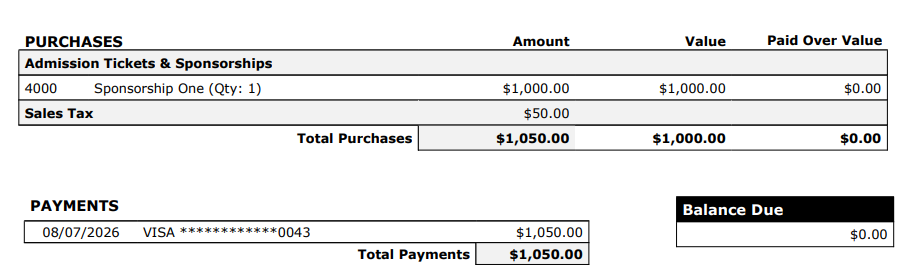
Once payment processes, they receive a receipt showing the payment applied and a Balance Due of $0.00.
Manage existing links
The Payment Links window lists every link created for that contributor:
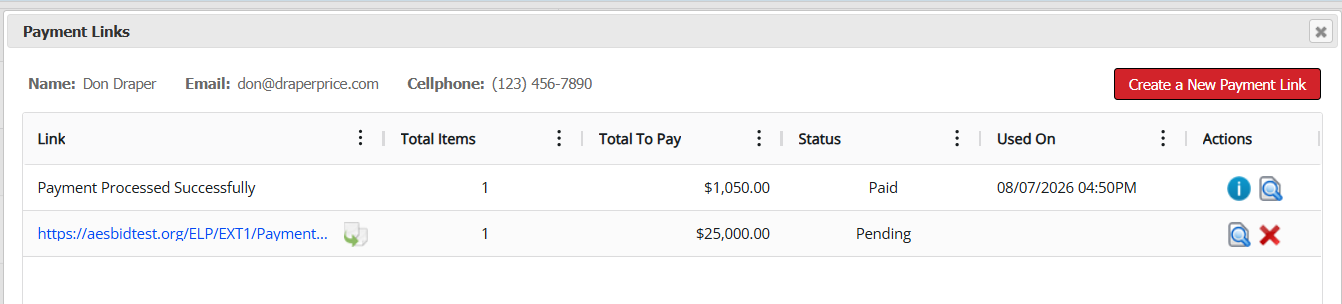
- Link — the URL, with a copy icon
- Total Items — how many lines the link covers
- Total To Pay — the amount it will collect
- Status — Pending until it's used
- Used On — the date it was paid
- Actions — view the link's details, or delete it
Delete a link if the amount changes or you created it in error. Deleting the link doesn't remove the purchase or the balance from the contributor's record — it only invalidates that link. Create a new one with the corrected amount.
A contributor can have more than one active link at a time, which is what makes deposits and installment payments possible.
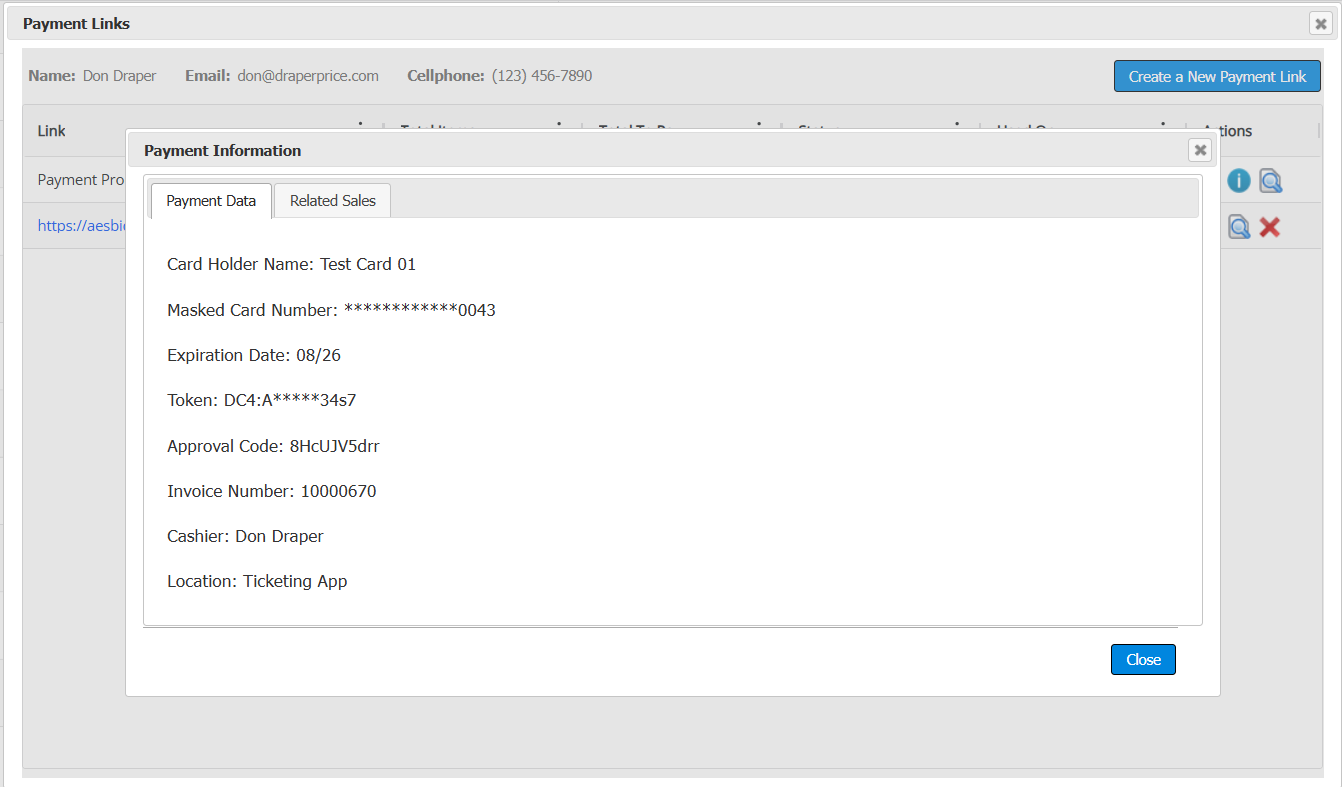
Completed links show a status of "payment processed successfully" with detail available about the payment itself (info icon).
Frequently asked questions
- Can I create one link that covers several purchases? Yes. Check the Pay box on every line you want to include. The link collects the combined total in a single transaction.
- Does the system email the link automatically? The Payment Links window generates the link for you to copy. Send it through your own email or messaging tool.
- What if the contributor pays by check instead? Still have the buyer complete the payment link so that their guests get invites. Make sure that the Pay Later option is enabled so that they can indicate they are sending in a check. Once received, record the payment on their Activity tab.
- Can I use payment links for auction winnings? Currently no, only multi-unit, donation, tickets and admission, and sponsorship packages can be paid for with payment links.
- How do payment links differ from a Messaging Center balance-due reminder? The Messaging Center sends one message to many recipients at once. A payment link is created for one contributor and one balance, and you send it yourself — so the message can be personal and specific. Use bulk messaging for broad reminders and payment links where the relationship justifies a direct note.
How did we do?
Configuring & Using Self-Checkout
Accepting/Splitting Payments
