Setting Up the Digital Program
Put your event program in the mobile bidding app, with pages, images, video and formatted text.

The digital program puts your event program in the mobile bidding app, so guests can read it on their phones or on the tablets at their tables. It can include images, videos and formatted text, and you can split it into pages that show as tabs.
Choosing the home page
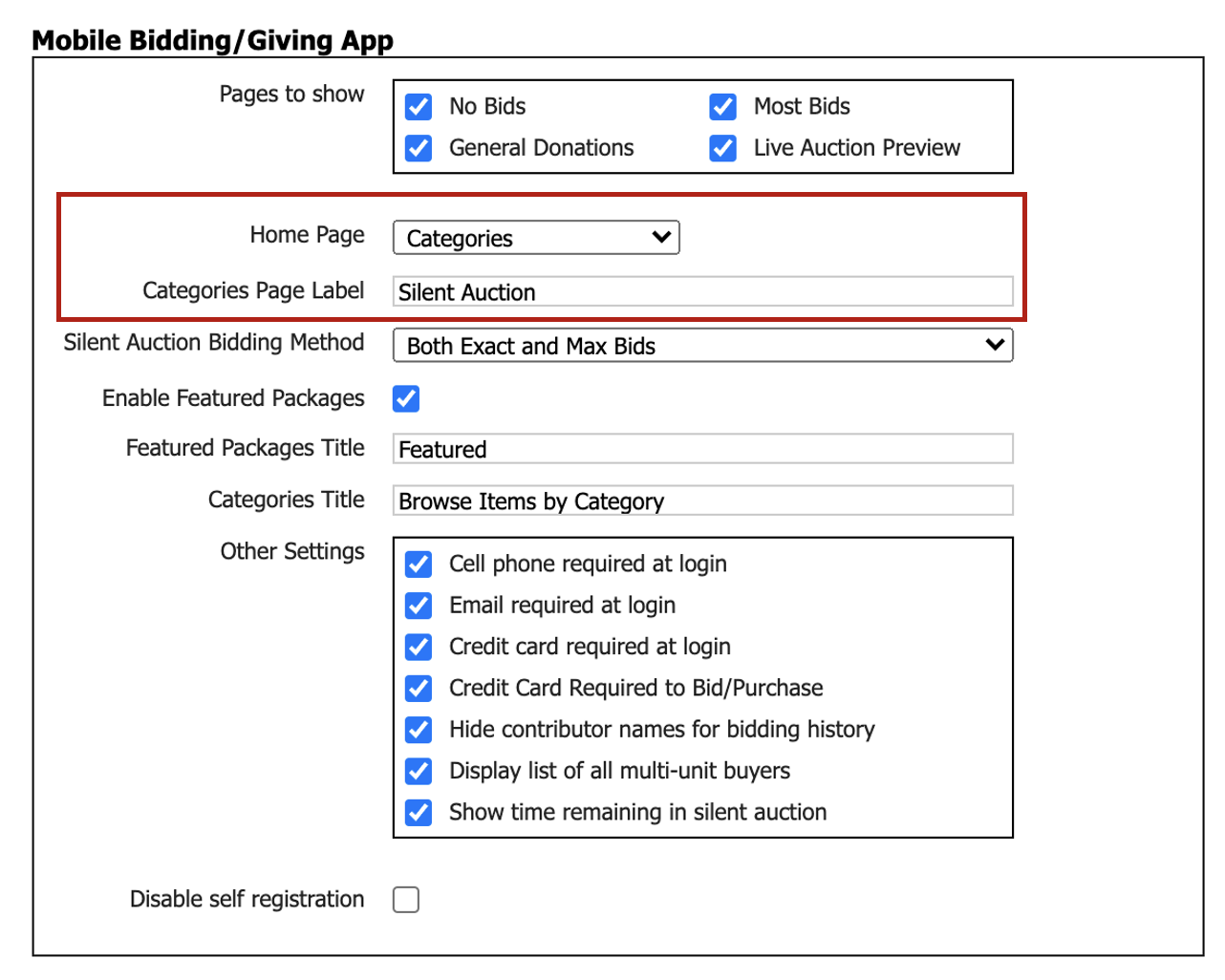
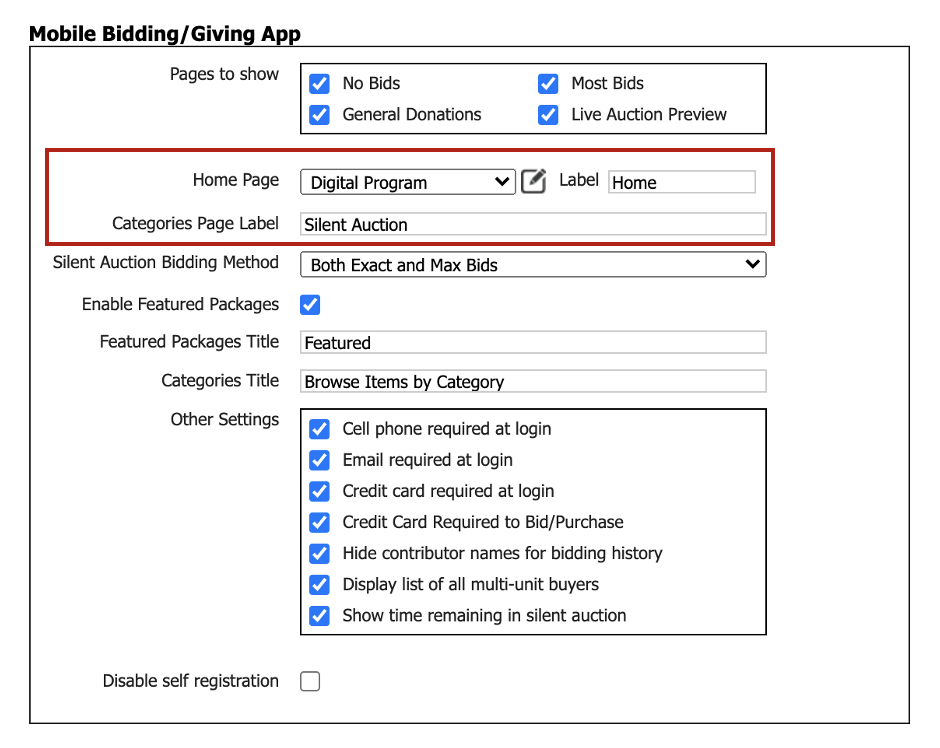
In Auction Conductor, go to Setup > App Settings > Mobile Bidding/Giving App. The app's home page has two options:
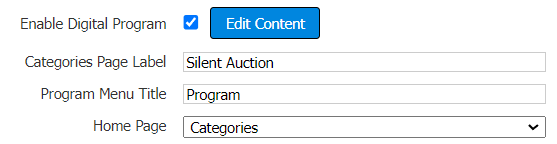
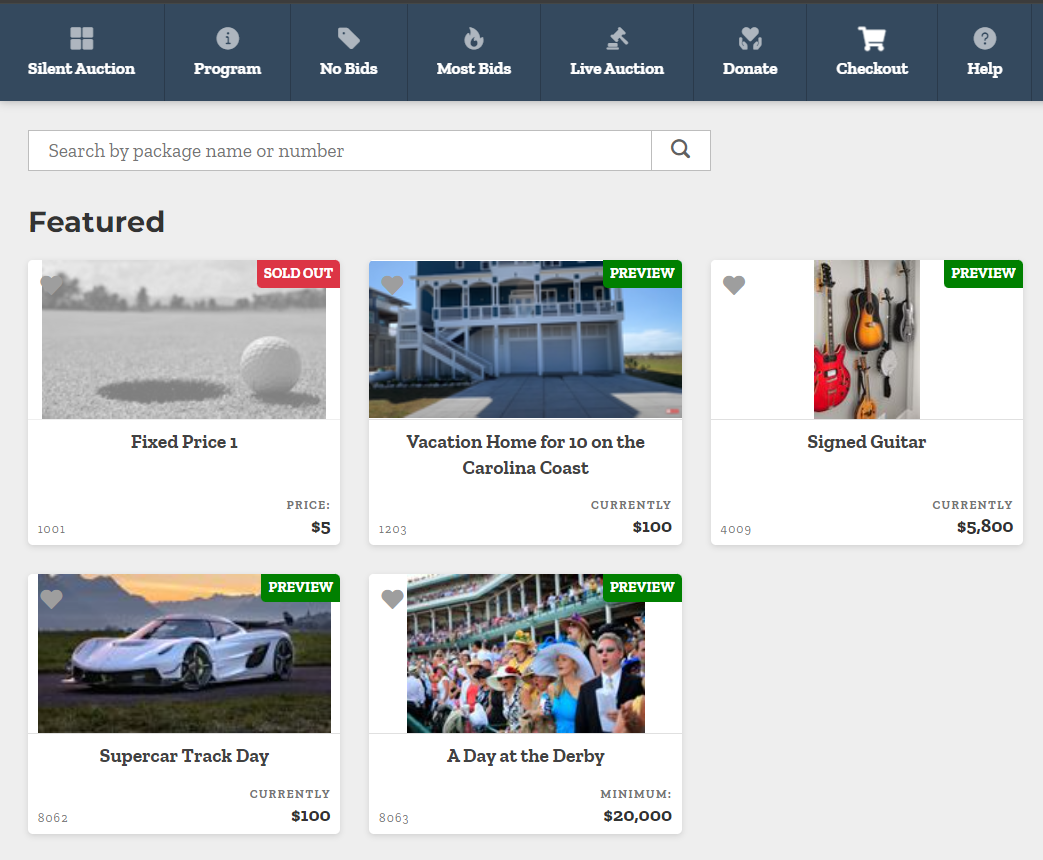
- Categories shows the standard auction home page, with your categories and featured packages. You can rename this page, for example to "Silent Auction". The default name is "Categories".
- Digital Program shows your program, with extra options for labeling the home page and setting up the program.
Adding your content
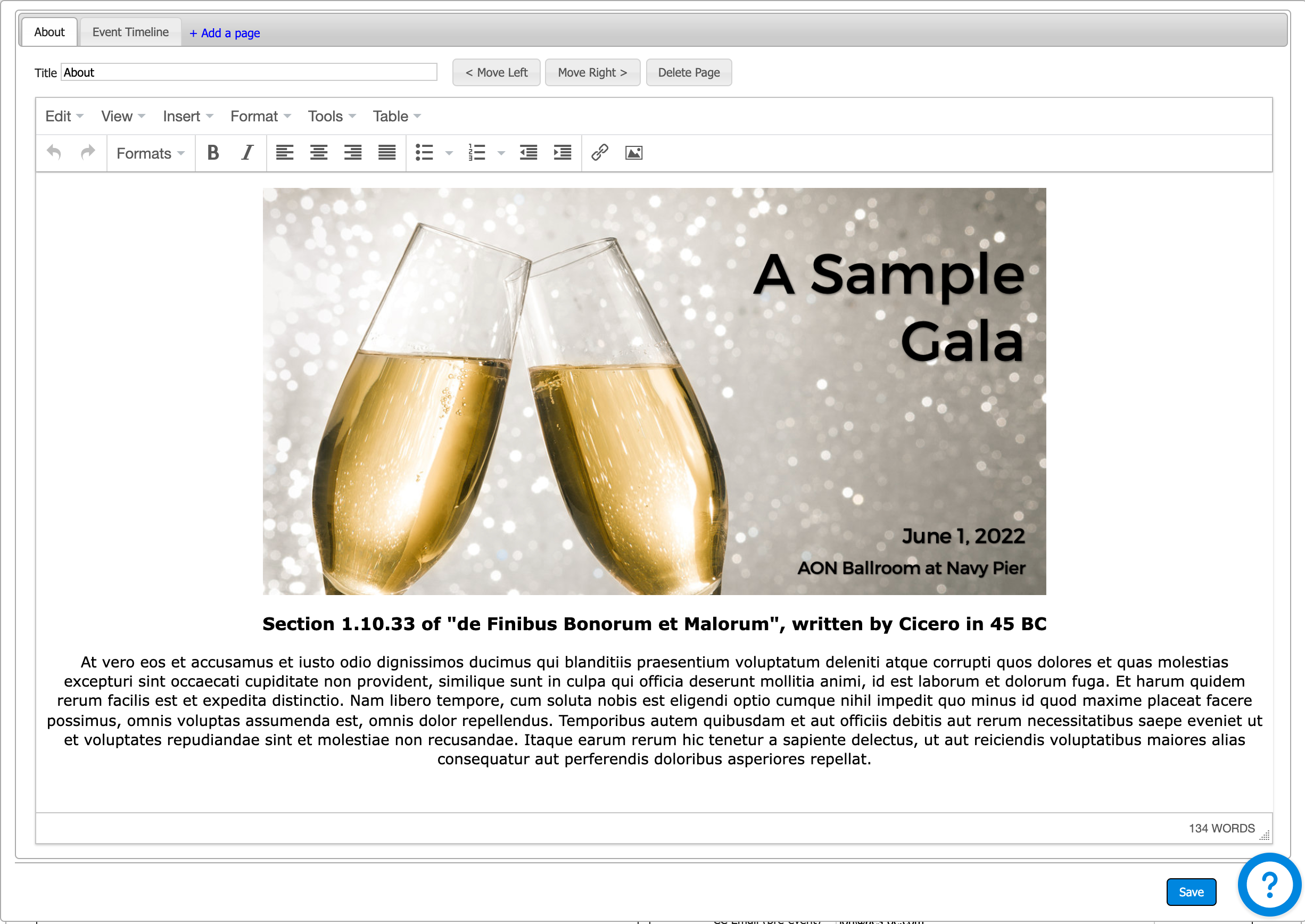
Click the edit icon and add your content in the editor. To split the program into sections, add more pages. Each page shows as a tab in the app.
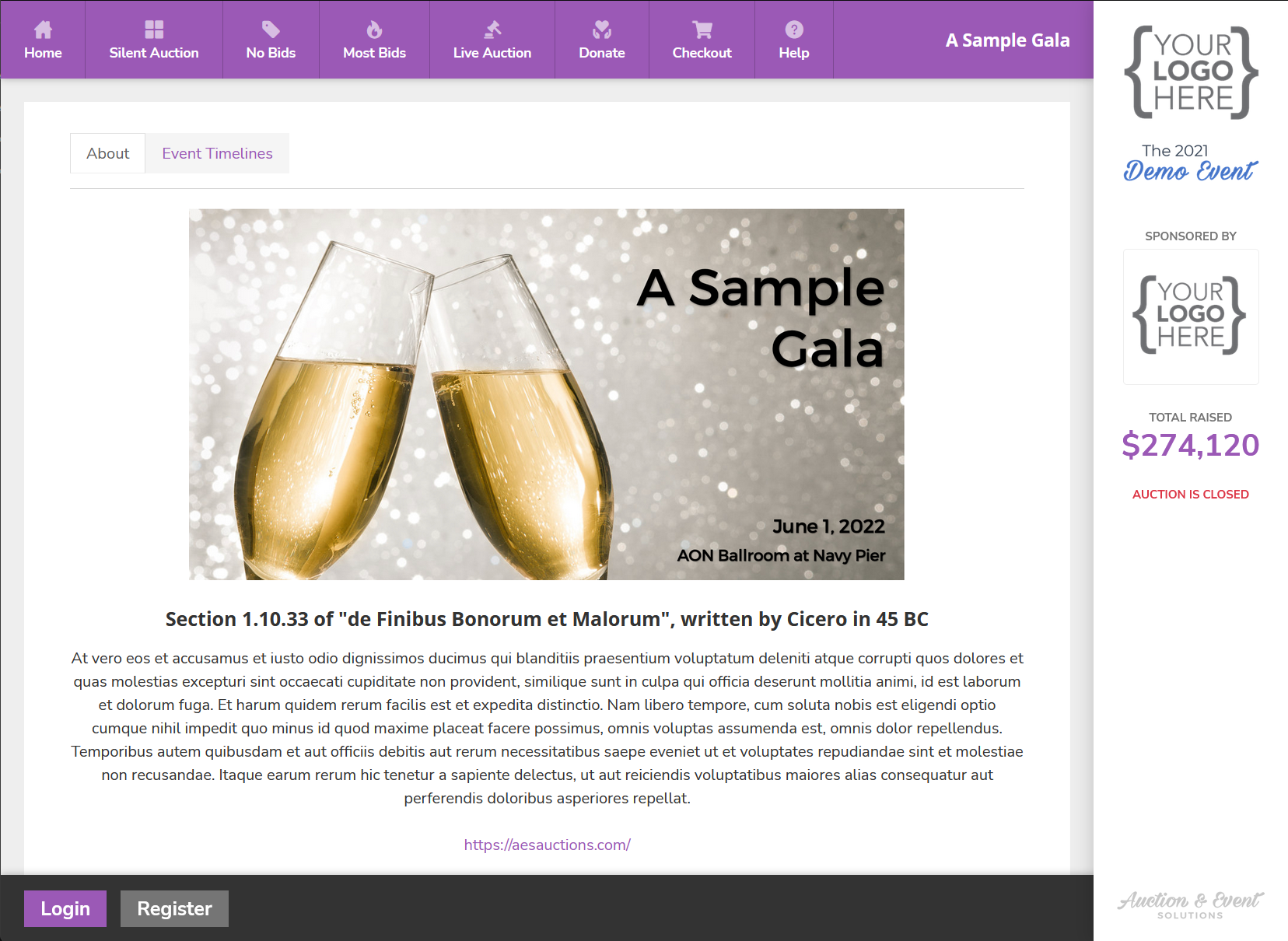
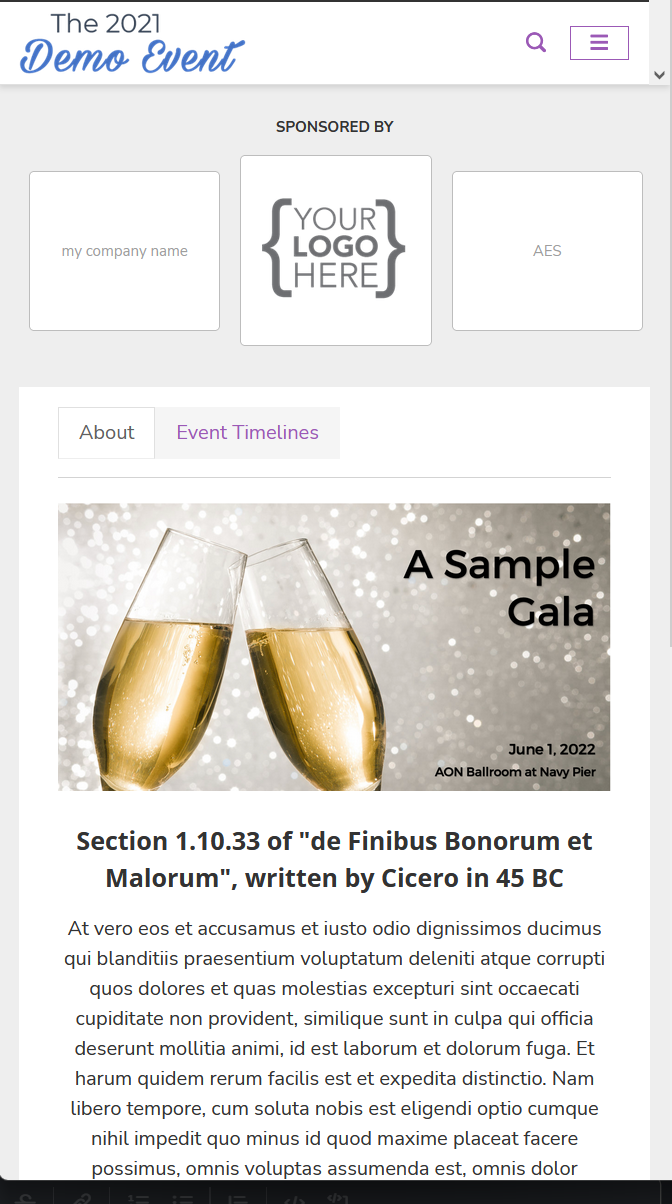
Here's how the program looks in the mobile bidding app:
Testing the program and keeping the auction on the home page
You can set up and test the program without showing it in the app, via the edit content button.
You can also put the program on the second tab of the main menu, so the auction stays on the home page.
How did we do?
Live Auction Bidding in the App
Setting up Kiosk for Multi-Unit Sales
