Flagging Pre-Commitments
Sometimes an organization secures a donation verbally before the event begins — a board member who pledges at a cultivation dinner, a major donor who confirms a paddle-raise gift a week early, a corp…

Sometimes an organization secures a donation verbally before the event begins — a board member who pledges at a cultivation dinner, a major donor who confirms a paddle-raise gift a week early, a corporate sponsor who commits during the ask but wants it recorded ahead of the room.
These gifts are real, and they belong in your totals. But they are not the same as money raised live in the room, and development teams need to tell the two apart — when reporting results to a board, when evaluating how the event itself performed, and when reconciling who still needs to be invoiced.
Pre-Commit is a flag you can apply to any donation in Auction Conductor. It does not change the amount, the donor, or the way the gift is processed. It marks the donation as secured in advance, so it stands out visually everywhere the sale appears and is counted separately in reporting.
What can be flagged
The Pre-Commit flag is available on donations only. That includes:
- General Donations
- Round-Up Donations
- Cover-My-Fees Donations
- All donation package types
Marking a donation as a pre-commitment
You set the flag in Auction Conductor, on the sale itself.
- Open the sale — either a new donation you are entering, or an existing one you are editing.
- Check the Pre-Commit checkbox.
- Save.
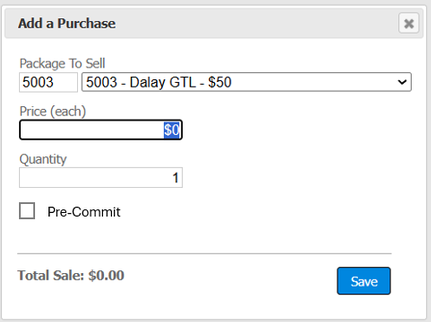
The checkbox is available on both the entry and edit screens, so a donation can be flagged when it is first recorded or marked afterward once you learn it was secured in advance. Clearing the checkbox removes the flag and the donation returns to being treated as a standard gift.
Where the Pre-Commit label appears
Once flagged, the sale displays the word Pre-Commit in red wherever it shows up. The label is read-only in these views — it identifies the donation at a glance and is not editable there.
In Auction Conductor
Screen | Where the label sits |
Contributor Detail → Purchases grid | Beside the package title |
Package Detail → Sales grid | Beside the bidder name |
Post Event Analysis → Donations | Beside the bidder name |
Invoice Summary Report (PDF) | In parentheses after the package name |

Contributor Detail → Purchases grid. Both a Fund-a-Need and a Cover-My-Fees donation are flagged.

Package Detail → Sales grid, with the label beside the bidder name.
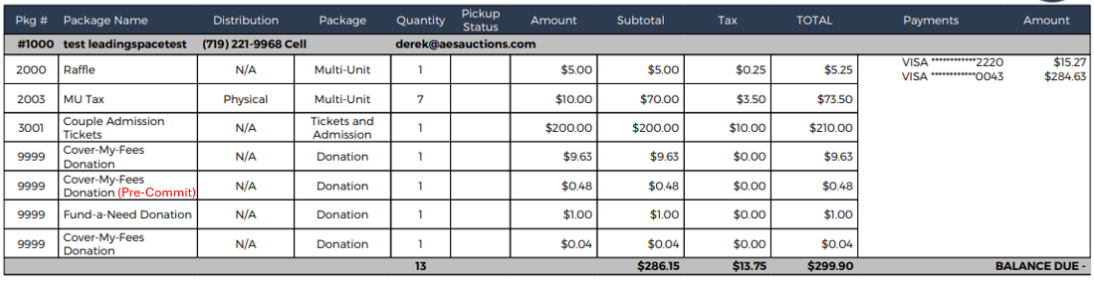
Invoice Summary Report. Flagged donations read “(Pre-Commit)” in red after the package name.
In Event Manager
Event Manager reads the same flag, so anything marked in Auction Conductor appears on-site without any extra step.
Screen | Where the label sits |
Checkout grid | Beside the package title |
Quick Entry validation report | Beside the donor name |
Bids & Packages → Detail → Sales History | Beside the donor name |
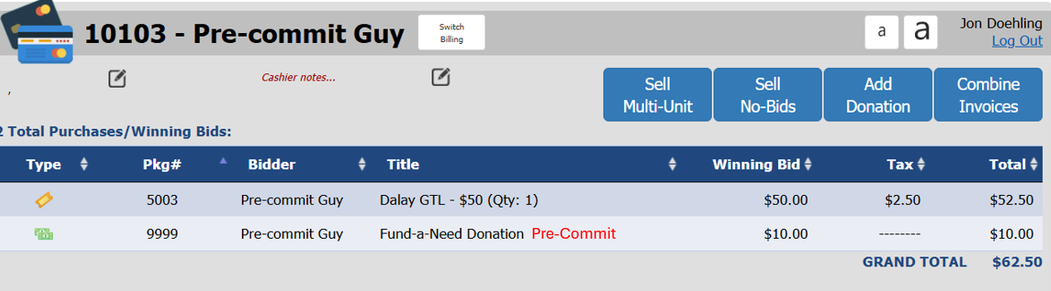
Checkout. Staff can see at a glance that the Fund-a-Need gift was pledged in advance.
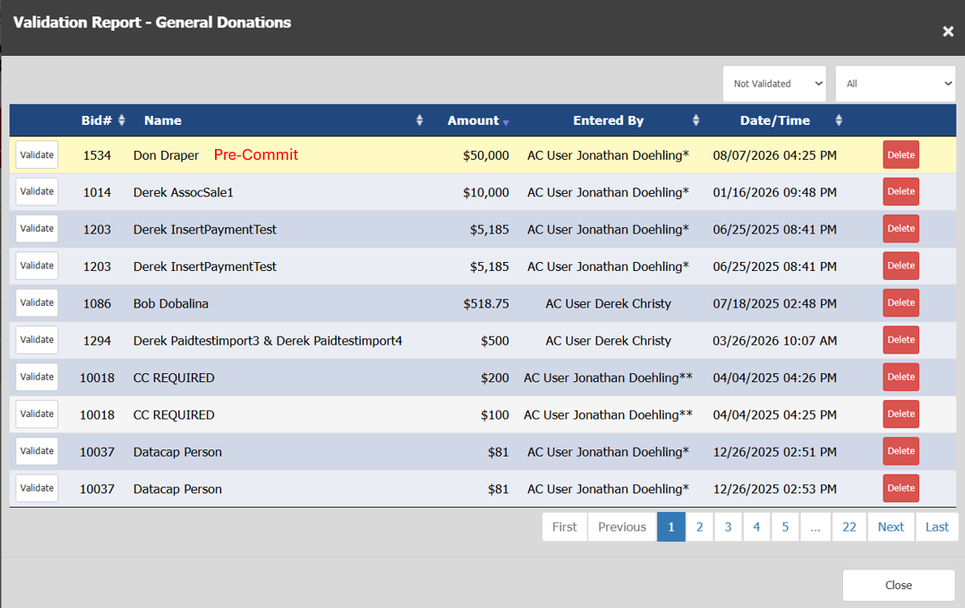
Quick Entry validation report for general donations.
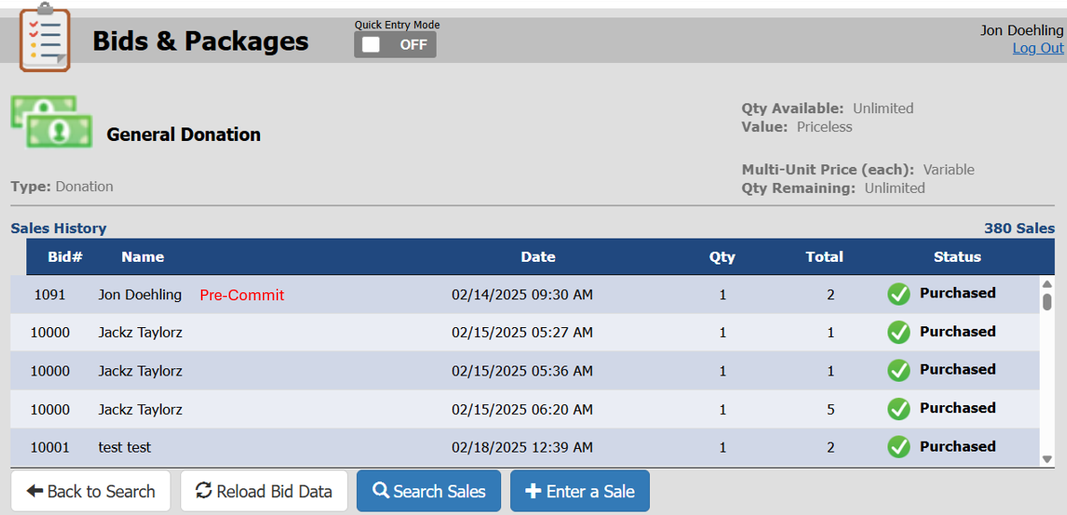
Bids & Packages → General Donation → Sales History.
On the Bids & Packages detail screen the label appears across all three views — the general donations view, the package view (including donations sold as multiple units), and the contributor view.
Reporting on pre-commitments
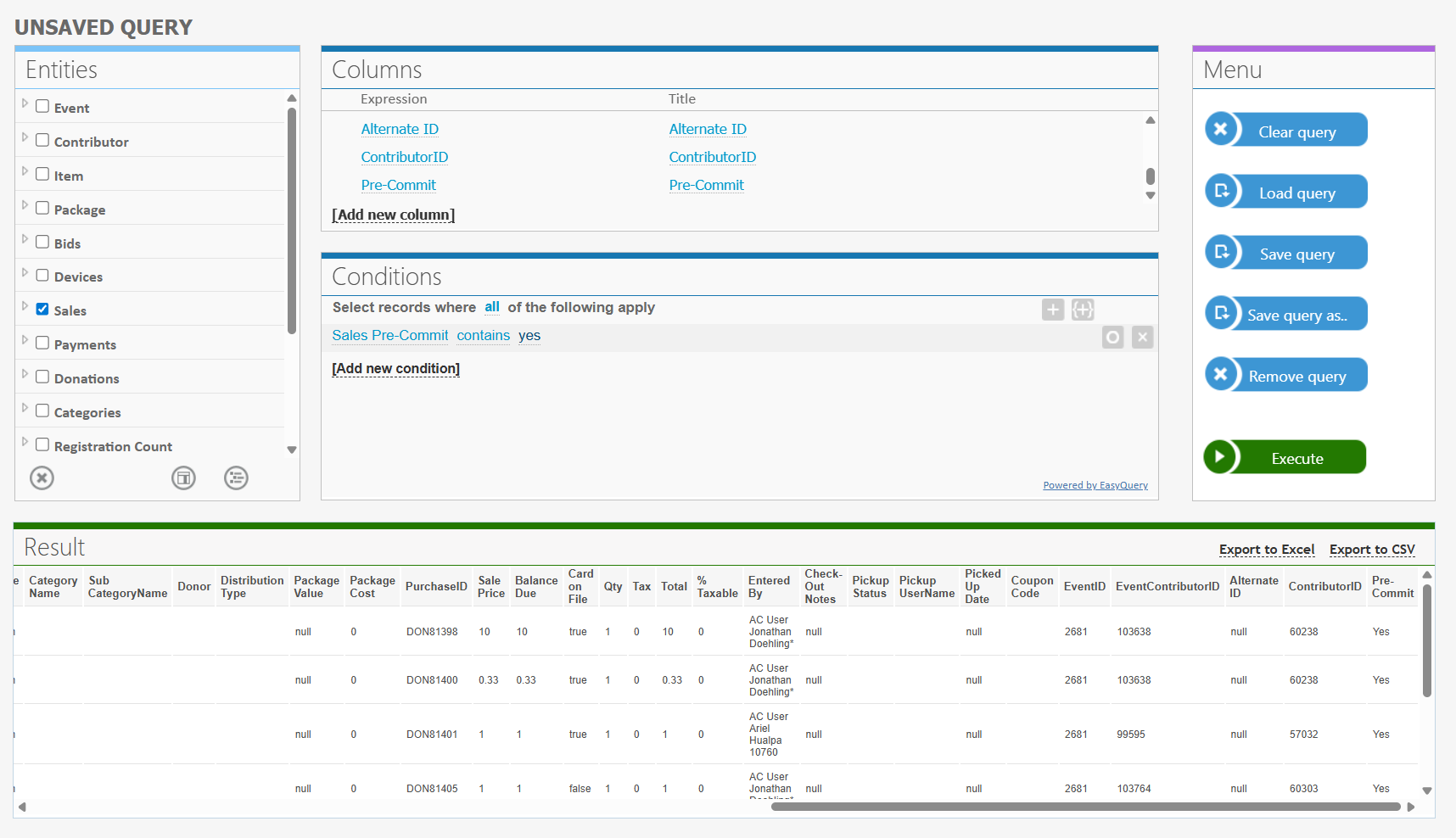
Custom Report Generator
A Pre-Commit column is available on two entities:
- Sales
- Donations
Add the column to a view to filter, sort, or export by pre-commit status — useful for pulling a clean list of everything secured before the event, or for excluding pre-commitments when you want to see live-room performance on its own.
Post Event Analysis — Objective Reporting Summary
The Objective Reporting Summary carries a dedicated Pre-Commit Donations block reporting counts and dollar totals alongside your other event objectives.
- Quantity counts, not sale records. A single purchase of two units at $50 each is reported as 2 pre-commitments for $100 total, not one.
- The wording adjusts to the count. One is a “pre-commitment”; more than one is “pre-commitments.”
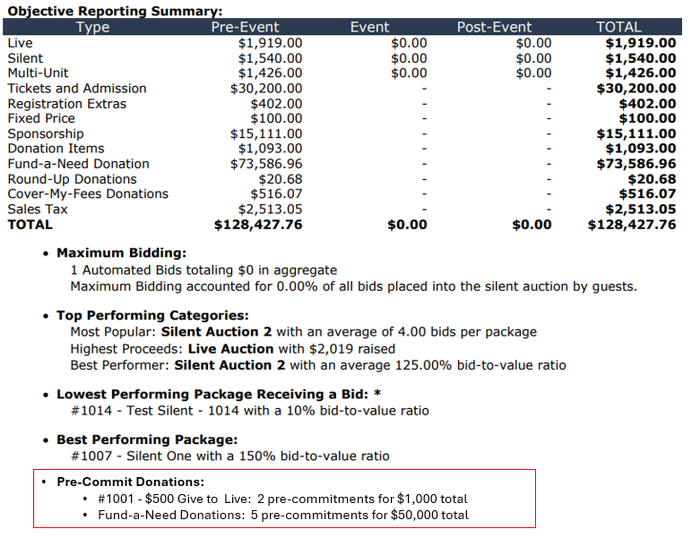
Objective Reporting Summary with the Pre-Commit Donations block at the bottom.
Post Event Analysis — Donations
Every flagged donation carries the red Pre-Commit label next to the bidder name, so the summary numbers can be traced back to the individual gifts behind them.
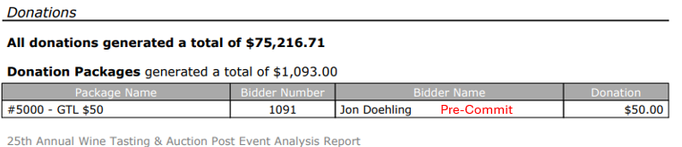
Donations section of the Post Event Analysis report.
For integrations
The pre-commit status is exposed through the /getActivity API. Each entry in the sales array includes the pre-commit status as a true/false value, so downstream systems and client integrations can consume the flag without a separate call.
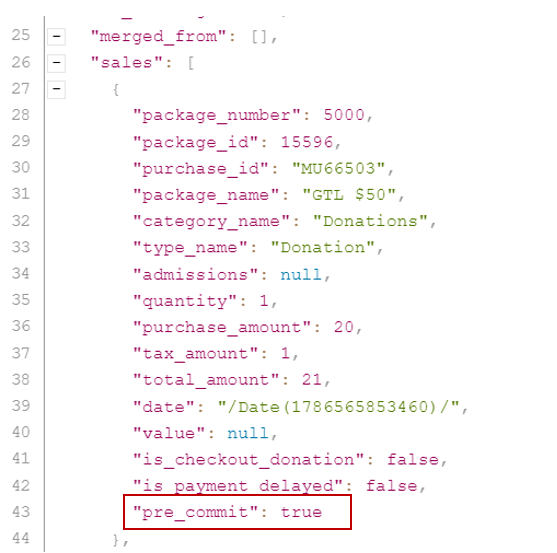
Underneath, the flag is stored as a boolean on the donation package sale record, covering general, round-up, and cover-my-fees donations. It defaults to false, so existing historical donations are unaffected until someone deliberately flags them.
Frequently Asked Questions
Does flagging a donation change the amount, the receipt, or how it is processed?
No. The flag is purely a label and a reporting dimension. The gift is processed, invoiced, and receipted exactly as it would be otherwise.
Can I flag a donation after the event?
Yes. The checkbox is on the edit screen as well as the entry screen, so a gift can be marked at any point.
Do pre-commitments still count toward event totals?
Yes. They are normal donations carrying an extra label. The Objective Reporting Summary reports them as a distinct count and total so you can see them separately, but they are not removed from your overall figures.
Why does the checkbox not appear on my auction item?
Pre-Commit applies to donations only. It is not available on auction items, admissions, or other non-donation package types.
Who can set the flag?
Any user with permission to enter or edit a sale in Auction Conductor.
How did we do?
Verbal Paddle Raiser/Fund-a-Need
