Bid Paddle Printing for Households
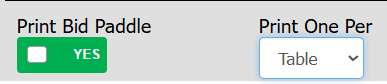
Choose between one paddle per person (essential for paddle drops) or one per table (saves paper). Your preference automatically applies to all subsequent check-ins for the event.

When checking in households for your auction event, you need to choose how to print bid paddles based on your event format and logistical requirements.
Paddle Printing Options
You can choose between two printing approaches, available for both pre-printing and real-time printing:
- One paddle per person – Creates individual paddles for each attendee. Use this option for all auction formats, especially if you're planning paddle drop activities or need to physically collect paddles after your live auction rather than calling out bidder numbers.
- One paddle per table – Creates shared paddles when multiple household members sit at the same table with the same bidder number. This option reduces paper waste and works well for traditional auctions where bidders raise paddles to place bids.
Setting Your Printing Preference (Staffed Check-In)
On the check-in screen, use the toggle switch to enable or disable paddle printing. Your selected preference applies automatically to all future check-ins for this event, so you only need to set this once.
Example: The Simpson Family
Here's how each printing option works with a sample household:
- #101 Homer Simpson – Table 1
- #101 Marge Simpson – Table 1
- #101 Bart Simpson – Table 2
- #101 Lisa Simpson – Table 2
One Per Table prints 2 paddles total:
- #101 Homer & Marge – Table 1
- #101 Bart & Lisa – Table 2
One Per Person prints 4 individual paddles, one for each family member.
Pre-Printing Bidder Paddles
To pre-print paddles in Auction Conductor:
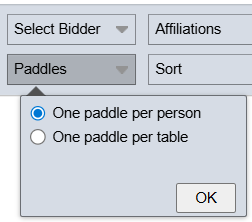
- Navigate to Reporting > Event Day Materials > Bid Paddles
- Select your preferred option from the dropdown menu
How did we do?
Adding a New or "Walk-In" Contributor at Check-In
Pre-Printing Bid Paddles
